Operation: Computer Programming
There is a variety of methods and interfaces that can be used to program the ARx Series MagnaLOAD DC electronic load from a computer or programmable logic controller. Standard Commands for Programmable Instrumentation (SCPI) are provided for basic ASCII interfacing without any necessary drivers. In addition, an IVI-COM Driver is included with the installation CD and is available for download from the Magna-Power Electronics web page for more advanced programming requirements. The driver allows the power supply to communicate through many different programming languages and software environments, namely: Visual C++, Visual C#, Visual Basic .NET, Visual Basic 6.0, LabVIEW, LabWindows/CVI, MATLAB, Measure Foundry, and Agilent VEE Pro. Refer to Section 5.7, “IVI-COM Driver” for further details.
ARx Series MagnaLOAD DC electronic load purchased with optional LXI TCP/IP Ethernet (+LXI) or IEEE-488 GPIB (+GPIB) interfaces have additional commands and programming instructions.
Communications Validation
It is import to establish and validate basic communications functions before starting a sophisticated computer interface project. The following instructions are intended to help customers isolate problems with computer settings, wiring, and electrical noise. The validation instructions also provide a common environment for which Magna-Power can reproduce issues in support cases and better serve the customer.
If not already installed, Magna-Power Electronics recommends using the terminal emulation programs called PuTTY for creating serial connections.
These instructions will validate communications over RS232, but the process can be completed over any interface by adjusting the connection settings. To test, make a physical connection between the RS232 connector on the MagnaLOAD electronic load and the RS232 connector on the computer. Pin outs for these connectors are described in RS232.
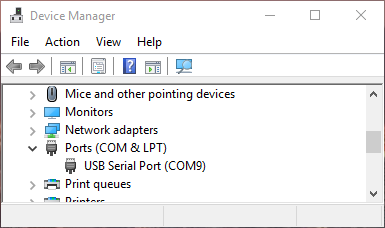
Open Device Manager and under ports make note of the COM port number, as shown in Fig. 8.1.
Window Device Manager
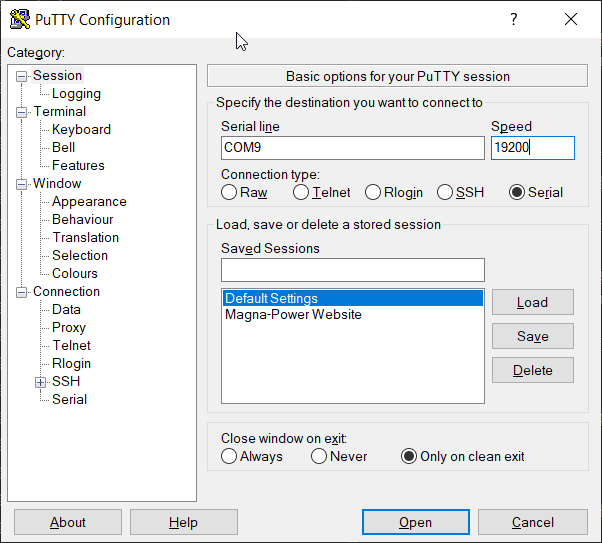
Open PuTTY and select the Session menu. Enter the COM port that was found in Device Manger and enter 19200 for the Speed. Set the Connection type to Serial, as shown in Fig. 8.2.
PuTTY Session Settings
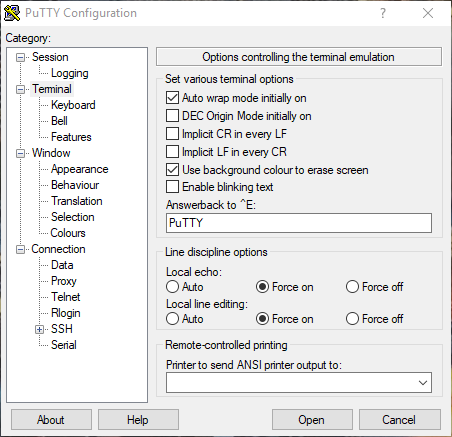
Select the Terminal menu and set Force on for all options. Press the Open button to start the communications session with the MagnaLOAD electronic load, as shown in Fig. 8.3.
PuTTY Terminal Settings
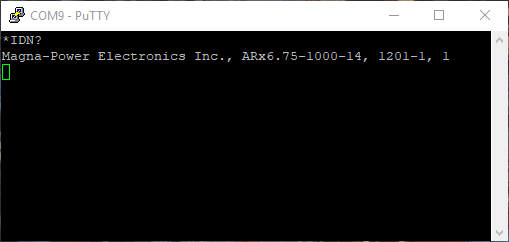
Session should open a new blank window. Type the command:
*IDN?
If settings match and wiring connections are correct, the session window should look like Fig. 8.4.
PuTTY Terminal Session Output