12.1. EtherNet/IP Overview
EtherNet/IP is an Ethernet-based communication protocol designed for industrial network communication. EtherNet/IP uses Common Industrial Protocol (CIP) over an Ethernet connection, typically through an RJ-45 connector. EtherNet/IP is widely used, especially in industrial settings, due to its large and fast data exchanges and community of support from Open DeviceNet Vendors Association (ODVA). The following terminology will be used throughout this document:
- Device
A device is any product that supports the EtherNet/IP protocol.
- Connection
A connection is a logic link between two devices to send and receive data.
- Orginator
An orginator (O) is a master device, or a controlling device, that initiates a request or a connection. PLCs or external software can be used as an EtherNet/IP orginator.
- Target
A target (T) is a device that receives a request or connection from the master. Multiple targets can be connected to one orginator on a network. Magna-Power products, that support EtherNet/IP, are target devices.
- TCP
TCP is a connected communication protocol that has error handling built-in. TCP requires that the orginator and target are both connected to each other and will exchange data in a multiple handshake format.
- UDP
UDP is a communication protocol that does not require a connection. UDP messages are rapidly sent over the network to a specific destination without error handling.
In the EtherNet/IP protocol there are two main types of communication: explicit messaging and implicit messaging. Each type of communication has supports different connections, traffic paths, and message formats, as shown in the chart below.
Messaging |
Form of messaging |
Protocol |
Connection |
|---|---|---|---|
Explicit |
Unconnected/Connected |
TCP/IP |
Class 3 |
Implicit |
Connected |
UPD/IP |
Class 1 |
For a more complete overview of EtherNet/IP and underlining standards, visit ODVA.org .
12.1.1. Explicit Messaging
Explicit messaging is used for non-realtime data exchange using request/response unicast messages handled with the TCP/IP protocol. Explicit messages are typical used for when the orginator device sends a request to read/write a value from/to a specific location on the target device. For example, a orginator could send an explicit message to set the device lock status. Requests from an orginator always result in a target response to indicate transaction success or failure.
The following parameters are needed in constructing an explicit message:
- Service Code/Name
The service code or the service name are required for requesting the action for the target device. For Magna-Power devices supporting EtherNet/IP, the service codes that are supported are Get Attribute Single (14 or 0x0E) and Set Attribute Single (16 or 0x10).
- Class ID
The class ID specifies the class object that data is being sent to or read from. For Magna-Power devices supporting EtherNet/IP, the class ID should be set to 162 (0xA2).
- Instance ID
The instance ID specifies the instance number of the above class object that is referenced in the request. All device supported instances can be found in the section Instances Listing.
- Attribute ID
The attribute ID specifies the attribute of the above instance referenced in the request. For Magna-Power devices, the attributes: Name (1), Access (4), and Value (5) are available. In most cases, the attribute ID should be set to 5.
12.1.2. Class 3 Connection
Class 3 connections are made only for explicit messages using TCP/IP. The connection parameters along with support communications paths are listed below. Detailed examples for explicit messages are provided in Explicit Messaging Example.
Parameter |
Value |
|---|---|
Number of Simultaneous Connections |
6 |
Supported RPI (Requested Packet Interval) |
100 ms to 10000 ms |
T →O Connection Types |
Point-to-Point |
O →T Connection Types |
Point-to-Point |
Supported Trigger Types |
Application |
Max. Supported Connection Size |
1526 bytes |
Supported Priorites |
Low, High |
12.1.3. Implicit Messaging
Implicit messaging is used for time-critical data exchange between a orginator and uses unicast or multicast messages handled with the UDP/IP protocol. The typical use case is when the orginator needs to set or query values on a target(s) in a controlled manner (cyclic and change-of-state).
12.1.4. Class 1 Connection
Implicit messages must define a traffic pathways up front as it does not require responses from targets, which greatly reduces traffic. Connection paths are defined as either inputs or outputs with respect to the network. Inputs hold data received from the network, while outputs are data sent to the network. Only a subset of instances in Instances Listing can be include as inputs/outputs, which are listed below.
Name |
Instance |
Service |
Size (Bytes) |
|---|---|---|---|
13 |
Get |
8 |
|
257 |
Get |
4 |
|
258 |
Get |
4 |
|
513 |
Set |
4 |
|
515 |
Set |
4 |
Below lists the connection parameters for a Class 1 connection. A detailed example of an implicit messages sent cyclically, is provided in Implicit Messaging Example.
Parameter |
Value |
|---|---|
Number of Simultaneous Connections |
4 |
Supported RPI (Requested Packet Interval) |
1ms to 3200ms |
T→O Connection Types |
Point-to-point, Multicast, Null |
O→T Connection Types |
Point-to-point, Null |
Supported Trigger Types |
Cyclic, Change-of-State |
Max. Supported Input/Output Connection Size |
1448 bytes (Large Forward Open)
509 bytes (Forward Open)
|
Supported Priorites |
Low, High, Scheduled, Urgent |
The Electronic Data Sheet file contains multiple connection types, with Exclusive-Owner being the most flexible, since it offers bi-directional traffic. With Input Only connections, originator (s) can only hold data and never sends data out onto the network. Heartbeat connections, send small messages, over a fixed interval, in a single direction (either O →T or T →O). All the supported connection types are outlined below.
- Exclusive-Owner connection
This type of connection controls the outputs and does not depend on other connections.
Max. number of Exclusive-Owner connections: 1 Connection path O →T: Assembly Object, instance 0x96 (Default) Connection path T →O: Assembly Object, instance 0x64 (Default)
- Input-Only connection
This type of connection is used to read data from the target without controlling the outputs. It does not depend on other connections.
Max. number of Input-Only connections: Up to 4 (shared with Exclusive-Owner and Input-Only connections) Connection point O →T: Assembly Object, instance 0x03 (Default) Connection point T →O: Assembly Object, instance 0x64 (Default) Please note that if an Exclusive-Owner connection has been opened towards the module and times out, the Input-Only connection times out as well. If the Exclusive-Owner connection is properly closed, the Input-Only connection remains unaffected.
- Input-Only Extended connection
This connection’s functionality is the same as the standard Input-Only connection. However, when this connection times out it does not affect the state of the application.
Connection point O →T: Assembly Object, instance 0x06 (Default) Connection point T →O: Assembly Object, instance 0x64 (Default)
- Listen-Only connection
This type of connection requires another connection in order to exist. If that connection (Exclusive-Owner or Input-Only) is closed, the Listen-Only connection will be closed as well.
Max. no. of Input-Only connections: Up to 4 (Shared with Exclusive-Owner and Input-Only connections) Connection point O →T: Assembly Object, instance 0x04 (Default) Connection point T →O: Assembly Object, instance 0x64 (Default)
- Listen-Only Extended connection
This connection’s functionality is the same as the standard Input-Only connection. However, when this connection times out it does not affect application state.
Connection point O →T: Assembly Object, instance 0x07 (Default) Connection point T →O: Assembly Object, instance 0x64 (Default)
12.1.5. Electronic Data Sheet
When developing or using Ethernet/IP software to talk to a Magna-Power Electronics DBx Module, an electronic data sheet (EDS) should be used for device discovery and network setup. The EDS file is a custom file created by Magna-Power Electronics that describes communication parameters, available services, and device identification. The file may be requested as part of the setup process in PLCs or installing third-party software. The EDS can be downloaded below and is used for Communication Examples.
12.1.6. Data Formatting
Byte Ordering EtherNet/IP must exchange properly formatted messages such that the targets can read requests. If the wrong number types or byte orderings are used, targets can misinterpretation data and respond unexpectantly. For example, the data entry for Hilscher EtherNet/IP Tool. For 16-bit words, bytes are ordered such that the significant bytes precedes the lower bytes in memory, which is standard little-endian. For 32-bit values, words are also ordered as little-endian, where the most significant word, precedes the least significant word. For a 32-bit value, 0x12345678, it should be sent as 0x78563412. Data is received following the same ordering. How software tools format data varies, and should be explored fully before testing.
Floating Point Data in transfered as a binary numbers (as opposed ASCII in SCPI Command Set) and needs a predetermined format for representing decimal numbers. For this, the widely adopted standard, IEEE-754, is used for storing floating point as a 32-bit values. For example, decimal number 3.14 is stored as 0x4048F5C3 in floating point. The number must adhere to the byte ordering conventions described previously. The final value of 3.14 would be sent as 0xC3F54840. Floating point numbers are received in the same format as they are sent.
12.2. Physical Interface
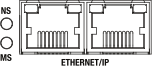
Fig. 12.1 Rear interface
12.2.1. Ethernet Ports
The DBx Module has two 100 Mbps RJ-45 Ethernet ports on the rear of the unit for EtherNet/IP communications, shown in Rear interface labeled ETHERNET/IP. Either port may be used, with the other port acting as an Ethernet passthrough.
12.2.2. LED Codes
In the rear of the DBx Module is a communications interface with two exposed bi-color LEDs. The LED labeled NS indicates network status and the one labeled MS indicates module status, as shown in Rear interface. Status is indicated using colors and blink patterns, as shown in the tables below.
State |
Description |
|---|---|
Off |
No power or no IP address |
Green |
Online, one or more connections established (CIP Class 1 or 3) |
Green, flashing |
Online, no connection established |
Red |
Duplicate IP address, fatal error |
Red, flashing |
One or more connections timed out (CIP Class 1 or 3) |
State |
Description |
|---|---|
Off |
No power or no error |
Green |
Controlled by an Orginator in Run state and, if CIP Sync is enabled, time is synchronized to a Grandmaster clock |
Green, flashing |
Not configured, Orginator in Idle state, or if CIP Sync is enabled, time is synchronized with Grandmaster clock |
Red |
Major fault, (exception state or fatal error) |
Red, flashing |
Recoverable fault(s). Module is configured, but stored parameters differ from currently used parameters. |
The RJ-45 Ethernet ports have two LEDs that indicate the status of the Ethernet connection. Link and activity status are indicated using colors and blink patterns, as shown in the tables below.
State |
Description |
|---|---|
Off |
No link |
Green |
Ethernet link (100 Mbps) established |
Green, flashing |
Activity (100 Mbps) |
State |
Description |
|---|---|
Off |
No link |
Orange |
Ethernet link (10 Mbps) established |
Orange, flashing |
Activity (10 Mbps) |
12.3. Diagnostic and Simulation Tools
In this section, tools are discussed for device discovery, configuration, and simulation of EtherNet/IP messages and connection classes on the network. Third-party software is recommended to act as the originator for these messages and is used extensively in later examples.
12.3.1. HMS IPConfig
HMS Networks provides a configuration tool called HMS IPconfig that is used to support their industrial communication interfaces. This tool can be used to discover devices on the network, configure IP settings, and blink the device’s LEDs for physical identification.
To configure device settings, ensure the DBx Module is connected to the network, open the tool, and select the device from the list of discovered devices. Click on the discovered device to open a configuration window as shown in HMS IPConfig. The IP address, subnet mask, gateway, and other network settings can be modified.
The software is available on HMS’s website listed below:
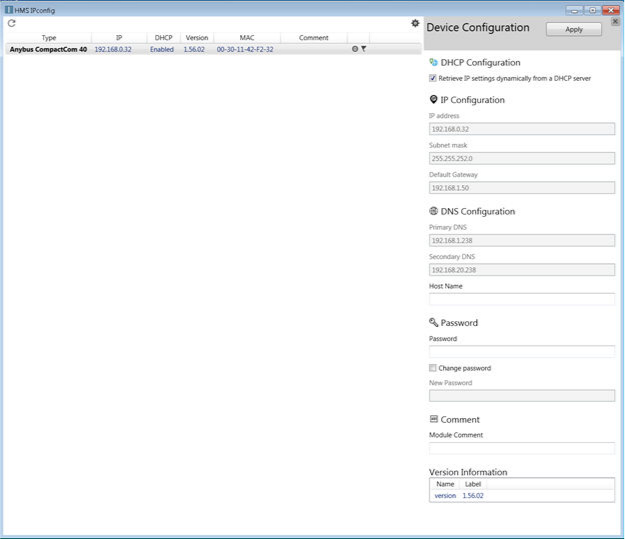
Fig. 12.2 HMS IPConfig
12.3.2. EtherNet/IP Web Page
Each Magna-Power EtherNet/IP device hosts a web page for easily accessing local network settings, device parameters, and operation status. The user interface is organized into the side menus listed below.
- Overview
Shows basic information about the EtherNet/IP module, notably the device uptime.
- Parameters
Shows the available parameters that can be read or written to. Parameters with a button next to them indicates they are writable from the web interface. Allow time for the parameters to load, as several read and write requests are needed each time new parameters are loaded.
- Status
Displays the IP settings, Ethernet status, packets sent, and errors encountered. This page is largely for diagnostic purposes.
- Configuration
This page allows the IP configuration to be modified and saved to the device.
- SMTP
Not usable menu, feature incompatible with EtherNet/IP implementation.
The web page provides a secondary means of communicating with the device by simplify typing the device’s IP address in a web browser, as shown.
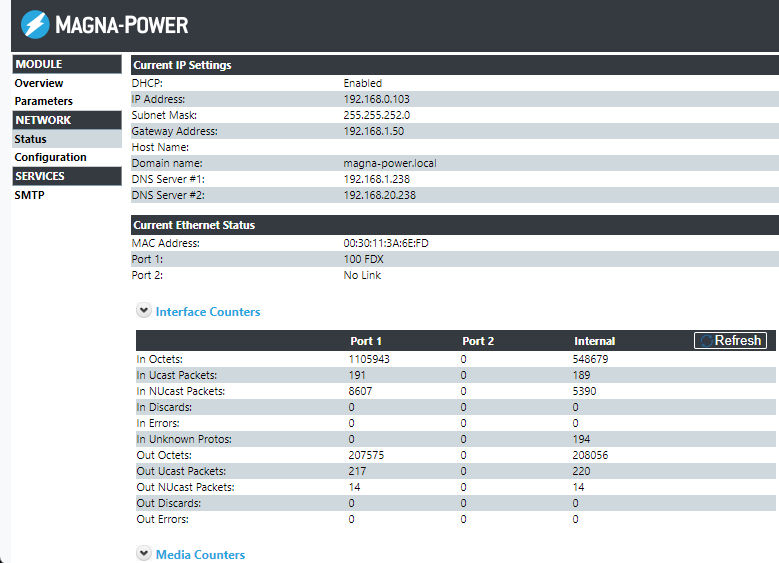
Fig. 12.3 EtherNet/IP web interface
There are multiple way the IP address can be found. Navigating in the front panel menu system, Communication Settings. Or, using a router to find the assigned IP address by MAC address. Or, installing Ethernet/IP software that support auto-detection, like HMS IPConfig or Hilscher EtherNet/IP Tool, as shown. Tool is also simulates messages as used in Communication Examples.
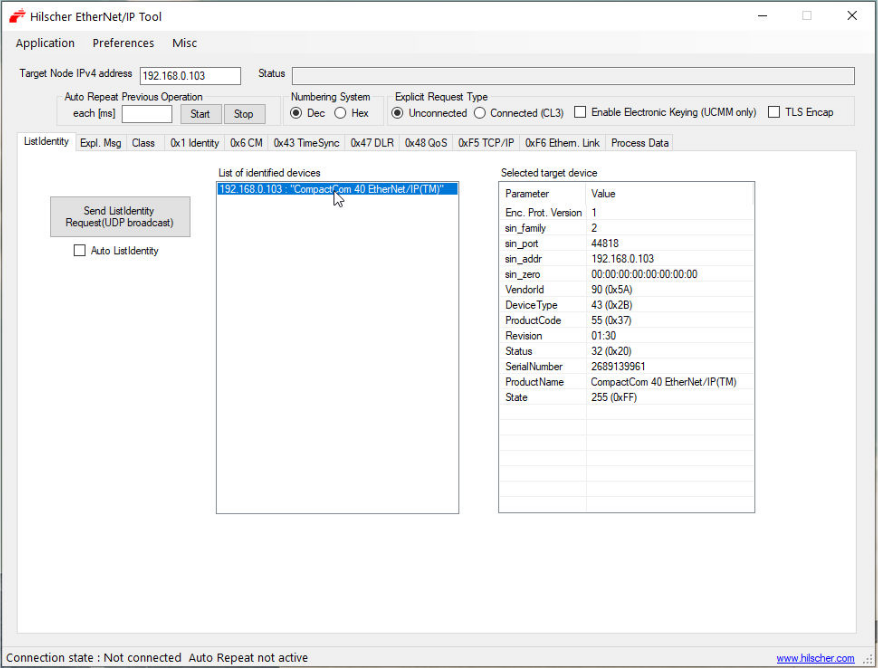
Fig. 12.4 Discovery using Hilscher EtherNet/IP Tool
12.4. Communication Examples
Hilscher’s EtherNet/IP Tool is software than can simulate EtherNet/IP messages and send request to Magna-Power devices. Below are some examples using this software to demonstrate the different types of messaging.
12.4.1. Explicit Messaging Example
Explicit messages involves simple request-response traffic between the originator and target. In Explicit read example, a request for the Setpoint Current (Instance #514) is sent and a response value 2.5A (0x40200000) is returned.
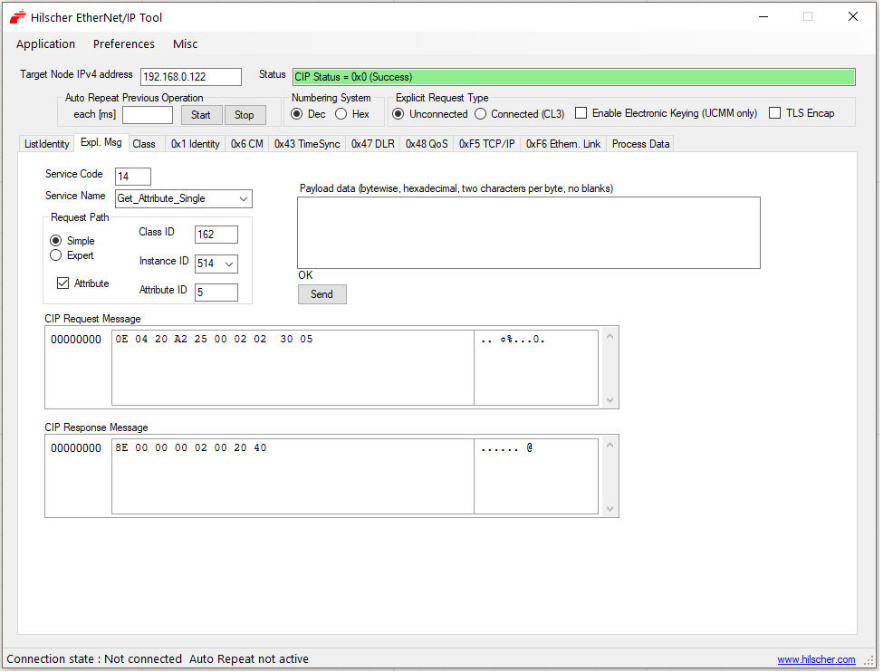
Fig. 12.5 Explicit read example
In Explicit write example, the value for the Setpoint Current (Instance #513) is updated with 2.578125A (0x40250000) and a CIP write response acknowledges the operation.
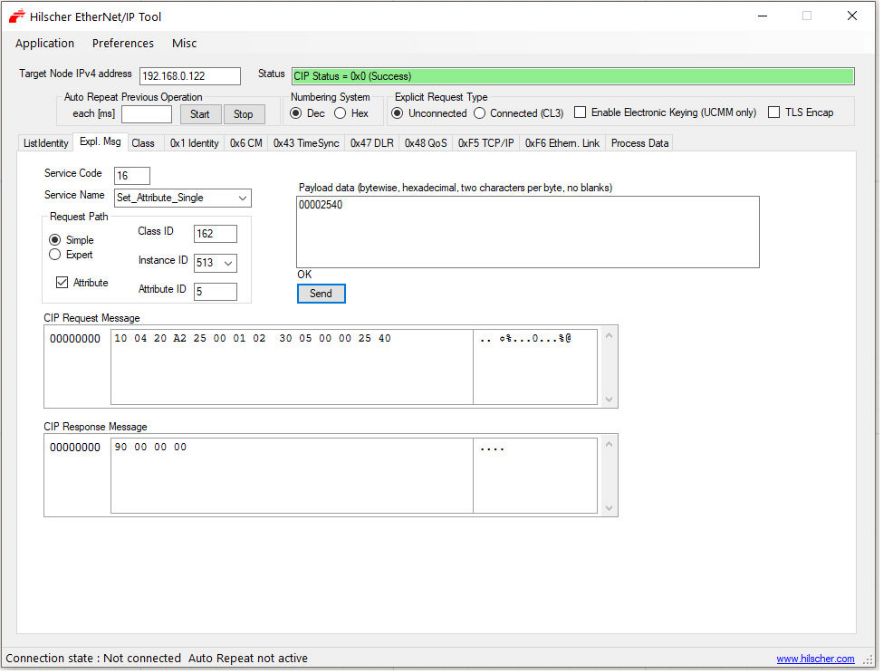
Fig. 12.6 Explicit write example
12.4.2. Implicit Messaging Example
The following is a typical use case example for implicit messaging, where the set point voltage and set point current are cyclically updated, and the terminal voltage, terminal current, and status register are measured concurrently. Hilscher EtherNet/IP Tool was used to construct the message and to act as the orginator. The connection path settings are listed below. Message needs to formatted as little-endian, as was discussed in Data Formatting. The fields labeled Actual I/O size must be sized to fit the traffic and checkboxes Additional 4 bytes for Run/Idle Header and Run Bit Set in Run/Idle Header must be checked, as shown in Implicit message example.
Object |
Instance |
Name |
Attribute |
Supported Services |
|---|---|---|---|---|
Assembly (0x04) |
100 (0x64) |
Input |
Data (3)
Size (4)
|
Get Attribute Single (14)
Set Attribute Single (16)
|
150 (0x96) |
Output |
Data (3)
Size (4)
|
Get Attribute Single (14)
Set Attribute Single (16)
|
|
5 (0x05) |
Configuration
(Used in Forward Open)
|
Data (3)
Size (4)
|
Get Attribute Single (14)
Set Attribute Single (16)
|
Name |
Value |
Data Type |
Value (Big-Endian) |
Value (Little-Endian) |
|---|---|---|---|---|
Setpoint Current |
45.0 |
32 bit Floating Point |
0x42340000 |
0x00003442 |
Setpoint Voltage |
100.0 |
32 bit Floating Point |
0x42C80000 |
0x0000C842 |
Name |
Value |
Data Type |
Value (Big-Endian) |
Value (Little-Endian) |
|---|---|---|---|---|
Status Register |
262209 |
32 bit Integer |
0x00040041 |
0x41000400 |
Terminal Current Measurement |
44.77724 |
32 bit Floating Point |
0x423316F9 |
0xF9163342 |
Terminal Voltage Measurement |
100.0365 |
32 bit Floating Point |
0x42C812BD |
0xBD12C842 |
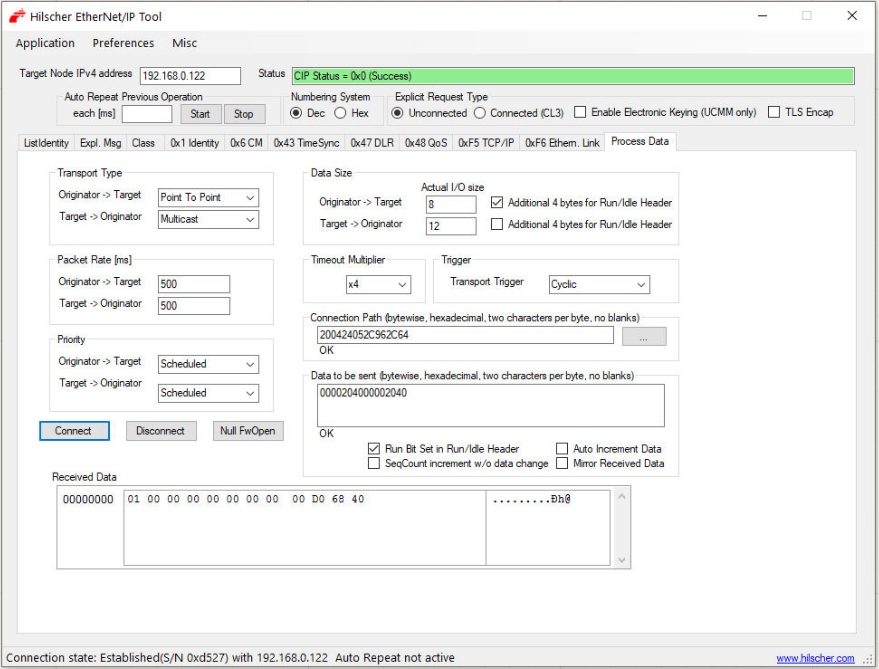
Fig. 12.7 Implicit message example
12.5. Development Using Studio 5000
EtherNet/IP with Magna-Power Electronics products was tested using Studio 5000 Logix Designer (V35), a Rockwell Automation software package for its Allen-Bradley PLCs. The software programs the PLC and requires a separate license. However, trial licenses are available through Rockwell sales channels. More information and programming instructions can be found at Studio 5000 Logix Designer.
12.5.1. Project Configuration
The following steps are needed to create a project in Studio 5000 for EtherNet/IP communication.
Download the product description file package located on the Magna-Power Electronics DBx Module page, under Integrated Options - EtherNet/IP . The file package includes description files for all supported communication protocols across all products. Extract the *.EDS and *.L5X files for the desired product, as they are needed to create a Studio 5000 project.
Open Studio 5000 and create a new project from the top menu, File > New. Select the PLC model, give the project a name, and then choose a save location. On the next dialog, select the hardware and security settings appropriate for the application, then click the Finish button.
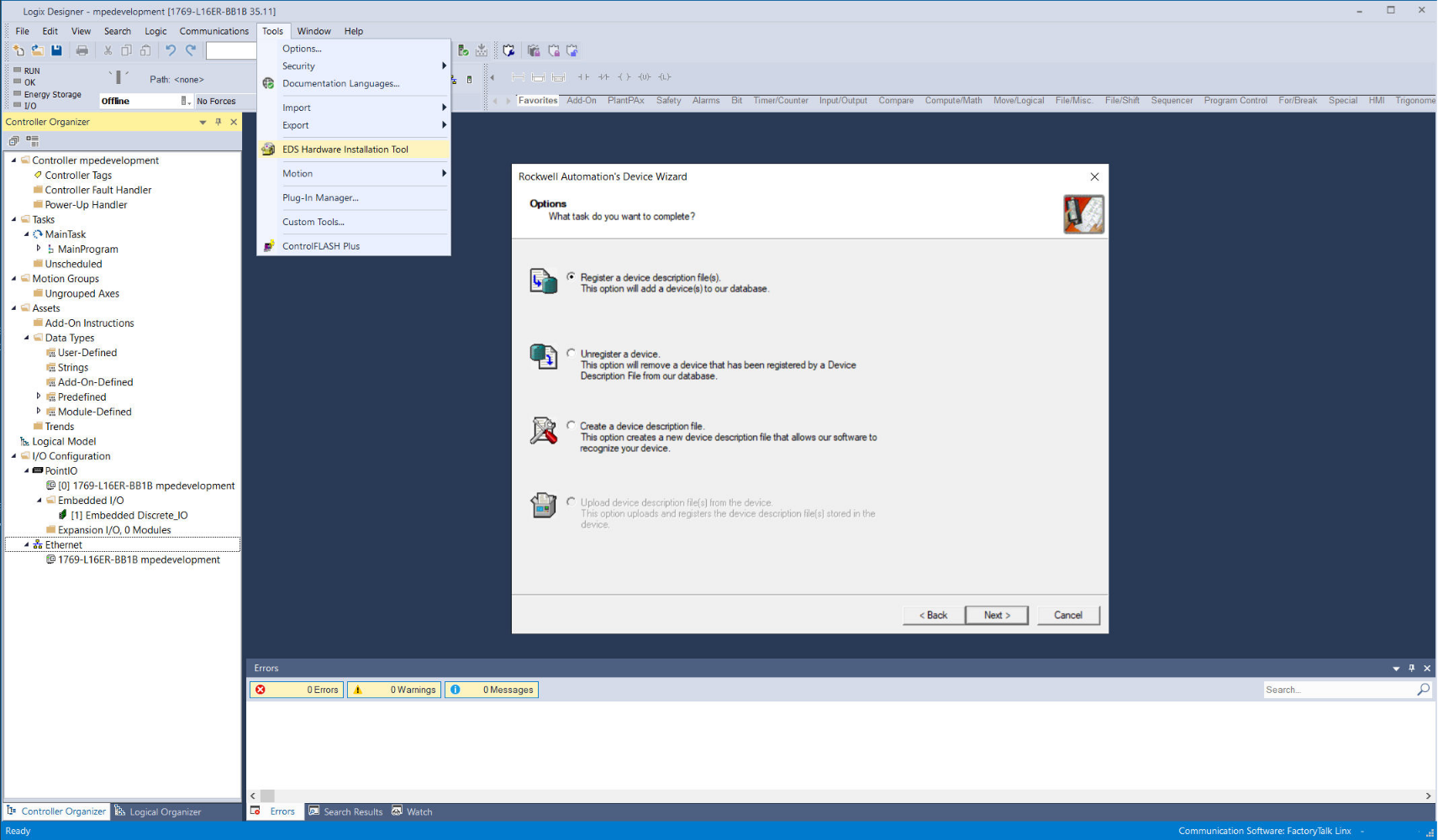
Install the product’s EDS file from the top menu, Tools > EDS Hardware Installation Tool. Click the Next button and follow the prompts to register the device description file that was extracted in Step 1.
Fig. 12.8 Add a new EDS file
Add the device to the project by expanding the I/O configuration tree view in the Controller Organizer panel. Right-click the Ethernet node and select New Module. From the list of available devices, type “ABCC” in the search box to quickly find the product. Select the product followed by the Create button.
Fig. 12.9 Add new Ethernet-based device
A popup will appear asking for the product details. Give the product a unique name. In the box labeled IP Address, enter the IP address given to the DBx Module. The address can be found using a network scanning tool, such as the HMS IPconfig Tool.
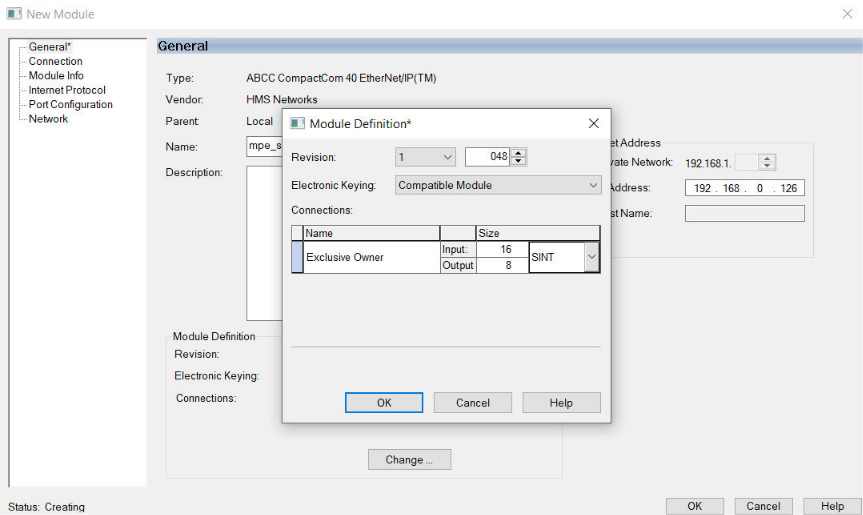
Finally, press the Change button at the bottom of the New Module window to open the Module Definition dialog. Set the connection data type to SINT. The input size is found by adding the size of the Get services listed in Supported implicit instances. Similarly, the output size is found by adding the Set services. Press the OK button to close both dialog boxes and accept the warning regarding changing the module definition.
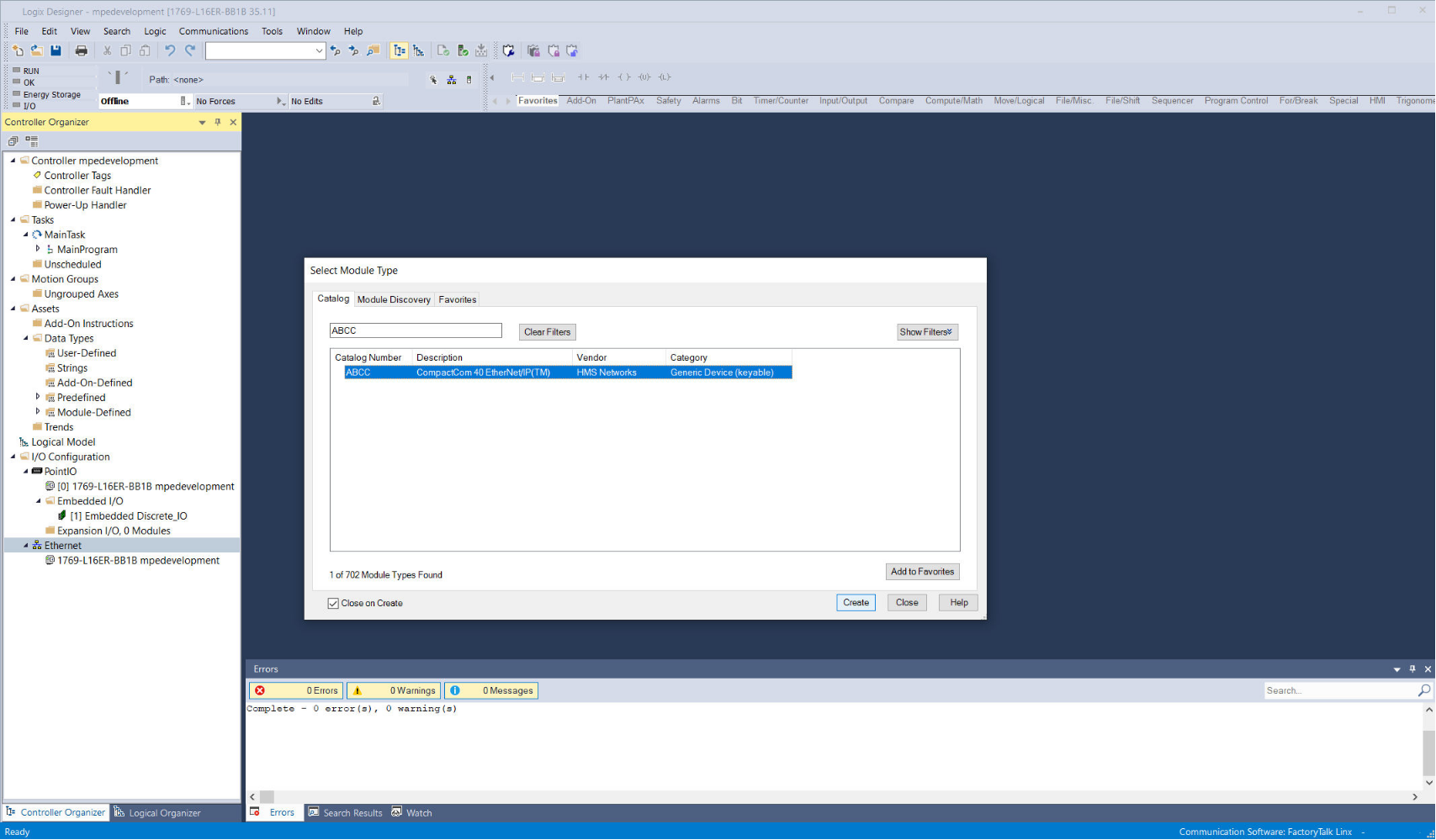
Fig. 12.10 Change the I/O size of the module to match the product
12.5.2. Implicit Messaging
In the Controller Organizer panel, expand Assets > Data Types, right click on User-Defined, and select Import Data Type. Select one of the *.L5X files extracted in Project Configuration - Step 1. Rename the data type and description, if needed, and press the OK button to close the Import Configuration window. Repeat this process for the remaining *.L5X files. Once imported, the assembly object data types are defined. Note that these assembly objects are defined on the DBx Module by the factory and cannot be modified by the user.
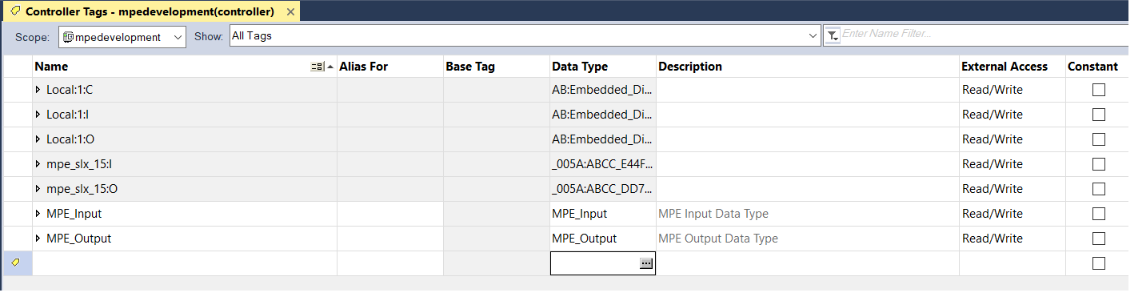
In the Controller Organizer panel, expand Tasks > MainTask > MainProgram and double click the Parameters and Local Tags entry. As needed, select the desired tag scope, and create one tag per user-defined data type imported in Implicit Messaging - Step 1.
Fig. 12.11 Add controller tags for assembly objects
Note
Studio 5000 assigns names to tags based on the PLC’s perspective. The DBx Module’s output is equivalent to PLC’s input. Conversely, the DBx Module’s input is equivalent to the PLC’s output. Tag and data type names are assumed to all be from the PLC’s perspective.
In the Controller Organizer panel, expand Tasks > MainTask > MainProgram, and double click the MainRoutine entry. Add a synchronous file copy (CPS) block to the ladder diagram. The source should be the DBx Module’s input data, and the destination should be the PLC’s input data tag. For instance, the source would be mpe_slx:I.Data[0] and the destination MPE_Input. Repeat the same step with the output data, ensuring that the source is the PLC’s output data tag and the destination is the DBx Module’s output data. Assembly objects are now defined, and implicit messaging between the PLC and DBx Module is made possible.
Fig. 12.12 Map assembly object to controller tags using CPS block

12.5.3. Explicit Messaging
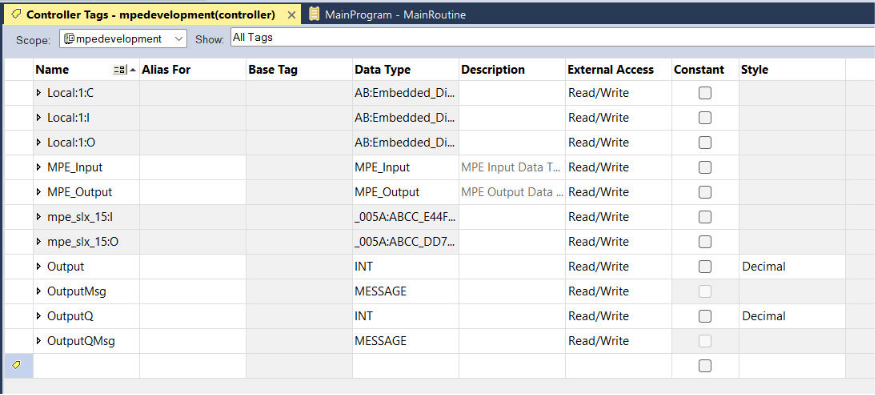
In the Controller Organizer panel, expand Tasks > MainTask > MainProgram and double click the Parameters and Local Tags entry. Create tags for storing explicit messaging data. In this example, tags are created for sending data (Output) and receiving data (OutputQ).
Fig. 12.13 Add necessary tags for explicit messages
Message-type tags are also created (OutputMsg and OutputQMsg). Next, create a message (MSG) block in the ladder diagram and enter OutputMsg in the block’s control field. Press the “…” button to open the message configuration dialog. Set the message type to CIP Generic, service to Set Attribute Single, class to A2, instance to 15, and attribute to 5. Set the source field to Output. In the Communication tab, press the Browse button and select the DBx Module.
Repeat Step 8 for the OutputQ message block, changing the service to Get Attribute Single, the instance number to 16, and the destination to OutputQ.
Fig. 12.14 Configure MSG block for explicit messaging
The instance numbers can be found under Instances Listing. For example, the instance number to query the power setpoint (SetpointPwr read) is 518.

Finish adding ladder elements to the program as needed. Once complete, in the top menu navigate to Communications > Who Active and find the PLC from the list of discovered devices. Select the Go Online button on the right side of the dialog to connect to the PLC. A popup should appear to download the program to the PLC.
Example ladder diagram shows a basic example of ladder logic used to control the output of an SLx Series using the configured MSG blocks. The MSG blocks are either triggered manually over the network or directly by the user in the Studio 5000 program.
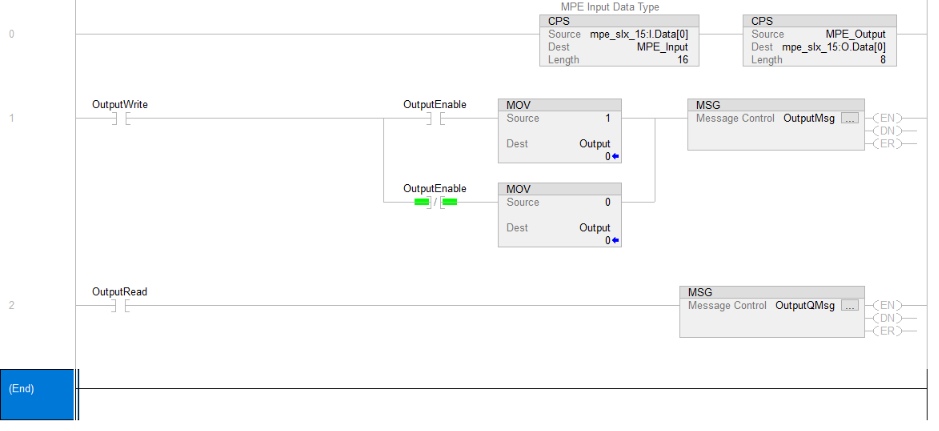
Fig. 12.15 Example ladder diagram
12.6. Instances Listing
EIP Command |
Write Instance |
Read Instance |
Description |
|---|---|---|---|
Operation Commands |
|||
N/A |
11 |
Returns the value of the Questionable Status register |
|
N/A |
12 |
Returns the value of the Operation Status register |
|
N/A |
13 |
Status Register |
|
15 |
16 |
||
Measurement Commands |
|||
N/A |
257 |
Measures and returns the average current at the sense location |
|
N/A |
258 |
Measures and returns the average voltage at the sense location |
|
N/A |
259 |
Measures and returns the instantaneous DC power at sense location |
|
Setpoint Commands |
|||
513 |
514 |
Sets the current set-point |
|
515 |
516 |
Sets the voltage set-point |
|
517 |
518 |
Sets the power set-point |
|
Trip Commands |
|||
769 |
770 |
Sets the over current trip (OCT) set-point |
|
771 |
772 |
Sets the over voltage trip (OVT) set-point |
|
773 |
774 |
Sets the over power trip (OPT) set-point |
|
775 |
776 |
Sets the under voltage trip (UVT) set-point |
|
Slew Commands |
|||
1025 |
1026 |
Sets the rising slew rate for current when in current regulation state |
|
1027 |
1028 |
Sets the rising slew rate for voltage when in voltage regulation state |
|
1029 |
1030 |
Sets the rising slew rate for power when in power regulation state |
|
1033 |
1034 |
Sets the falling slew rate for current when in current regulation state |
|
1035 |
1036 |
Sets the falling slew rate for voltage when in voltage regulation state |
|
1037 |
1038 |
Sets the falling slew rate for power when in power regulation |
|
1793 |
N/A |
Restores the factory EEPROM data |
|
1795 |
1794 |
Locks and unlocks the product from configuration and set-point changes |
|
1798 |
1799 |
Configures the sense location and automated compensation values |
|
1800 |
1801 |
Changes the communication protocol |
|
1802 |
1803 |
Sets the setpoint source |
|
1804 |
1805 |
Changes the MagnaLINK mode to allow for standalone or master-slave configuration |
|
1806 |
N/A |
Reinitialize all connected slaves |
12.6.1. Operation Commands
12.6.1.1. StatusQuesQ
This command queries and returns the values of the Questionable Register. This read-only register holds the live (unlatched) questionable statuses of the Accessory. Issuing this query does not clear the register. The bit configuration of the Questionable Register is shown in the table below.
- Write Instance
11
- Supported Service
Get
- Register Count
1
- Data Format
32-bit Integer
Questionable Register
Bit |
Weight |
Abbreviation |
Description |
|---|---|---|---|
0 |
1 |
OVP |
over voltage protection, hard fault |
1 |
2 |
OCT |
over current trip, soft fault |
2 |
4 |
OVT |
over voltage trip, soft fault |
3 |
8 |
OPT |
over power trip, soft fault |
4 |
16 |
OCP |
over current protection, hard fault |
5 |
32 |
OTP |
over temperature protection, hard fault |
6 |
64 |
RSL |
remote sense loss, soft fault |
7 |
128 |
SFLT |
soft fault, the ord value of all soft faults |
8 |
256 |
HFLT |
hard fault, the ord value of all hard faults |
9 |
512 |
ILOC |
interlock open, soft fault |
10 |
1024 |
IPL |
input power loss fault, hard fault |
11 |
2048 |
ADIF |
analog or digital input fault, hard fault |
12.6.1.2. StatusOperQ
This command queries and returns the values of the Operation Register. This read-only register holds the live (unlatched) operation statuses of the Accessory. Issuing this query does not clear the register. The bit configuration of the Operation Register is shown in the table below.
- Write Instance
12
- Supported Service
Get
- Register Count
1
- Data Format
32-bit Integer
Operation Register
Bit |
Weight |
Abbreviation |
Description |
|---|---|---|---|
0 |
1 |
STBY |
standby |
1 |
2 |
EN |
enabled |
2 |
4 |
RSEN |
remote sense |
3 |
8 |
LOCK |
front panel locked |
4 |
16 |
CC |
constant current regulation, regulation status |
5 |
32 |
CV |
constant voltage regulation, regulation status |
6 |
64 |
CR |
constant resistance regulation, regulation status |
7 |
128 |
CP |
constant power regulation, regulation status |
12.6.1.3. StatusRegQ
This command queries the Status Register. This read-only register holds the live (unlatched) operation status of the Accessory. Issuing a query does not clear the register. The register location and definitions are subject to change after any firmware release to accommodate new features. The Questionable Register is a subset of the status register and does not change between firmware updates. The present bit assignments are shown in the table below.
- Write Instance
13
- Supported Service
Get
- Register Count
2
- Data Format
32-bit Integer
Status Register 0
Bit |
Name |
Description |
|---|---|---|
0 |
standby |
output is in standby |
1 |
live |
output is active |
2 |
nonhalt1 |
available |
3 |
nonhalt2 |
available |
4 |
overCurrTrip |
over current trip |
5 |
overVoltTrip |
over voltage trip |
6 |
overPwrTrip |
over power trip |
7 |
remoteSenseLoss |
remote sense voltage outside of acceptable bounds |
8 |
underVoltTrip |
under voltage trip |
9 |
shutdown |
target is creating a shutdown condition |
10 |
linPwrLim |
power across linear modules exceed ratings |
11 |
resPwrLim |
power across resistors exceed ratings |
12 |
bootFailure |
one or multiple target did not boot up |
13 |
bootState |
one or more targets are waiting to boot |
14 |
phaseCurr |
rated phase current exceeded |
15 |
comm |
communications are corrupted |
16 |
overCurrProtect |
terminal current exceeded product rating |
17 |
overVoltProtect |
terminal voltage exceeded product rating |
18 |
tempRLin |
linear module exceeded temperature |
19 |
blownFuse |
fuse is blown on the auxiliary power supply |
20 |
interlock |
interlock open |
21 |
haltUserClear |
available |
22 |
maintenance |
maintenance |
23 |
tempDMod |
diode modules exceeded temperature |
24 |
incompatibleSysConfig |
incompatible system configuration |
25 |
stackOverflow |
exceeded firmware stack |
26 |
lineFault |
line fault analog/digital inputs |
27 |
tempRMod |
resistor module exceeded temperature |
28 |
belowRatedMinVolt |
below minimum voltage rating(28) |
29 |
outOfRegulation |
out of regulation, unexpected currents measured |
30 |
targetUpgrade |
mainctrl upgrading other targets |
31 |
haltSelfClear |
available |
Status Register 1
Bit |
Name |
Description |
|---|---|---|
0 |
phaseLoss |
one or more phase missing |
1 |
blownFuseInput |
input fuse blown on fuse/emi filter |
2 |
fanLockedRotor |
one or more fan’s rotor has locked |
3 |
notUsed29 |
available |
4 |
tempPwrMod |
power processing module temperature fault |
5 |
tempOutputMod |
output filter module temperature fault |
6 |
tempOutputCap |
output capacitors temperature fault |
7 |
tempTransformer |
transformer exceeded temperature fault |
8 |
notUsed26 |
available |
9 |
notUsed27 |
available |
10 |
notUsed28 |
available |
11 |
notUsed1 |
available |
12 |
notUsed2 |
available |
13 |
notUsed3 |
available |
14 |
notUsed4 |
available |
15 |
notUsed5 |
available |
16 |
invalidSysRating |
invalid system rating |
17 |
fwVersConflict |
firmware version conflict |
18 |
notUsed8 |
available |
19 |
notUsed9 |
available |
20 |
notUsed10 |
available |
21 |
notUsed11 |
available |
22 |
notUsed12 |
available |
23 |
notUsed13 |
available |
24 |
notUsed14 |
available |
25 |
notUsed15 |
available |
26 |
notUsed16 |
available |
27 |
notUsed17 |
available |
28 |
notUsed18 |
available |
29 |
notUsed19 |
available |
30 |
notUsed20 |
available |
31 |
notUsed21 |
available |
12.6.1.4. Output
This command enables or disables the Accessory output. A 1 indicates the product’s power processing circuit is active and processing power, while and a 0 indicates the power supply is in standby or faulted state.
- Write Instance
15
- Supported Service
Set
- Register Count
1
- Data Format
Boolean
- Read Instance
16
- Supported Service
Get
- Register Count
1
- Data Format
Boolean
12.6.2. Measurement Commands
12.6.2.1. MeasCurrQ
This query commands the Accessory to measure and return the average current through the DC terminals.
- Write Instance
257
- Supported Service
Get
- Register Count
1
- Data Format
32-bit Floating Point Number
12.6.2.2. MeasVoltQ
This query commands commands the Accessory to measure and return the average voltage at the DC terminals. If the remote sense function is used and engaged, this command returns the voltage measured at the sense terminals.
- Write Instance
258
- Supported Service
Get
- Register Count
1
- Data Format
32-bit Floating Point Number
12.6.2.3. MeasPwrQ
This query commands commands the Accessory to measure and return the average power at the DC terminals.
- Write Instance
259
- Supported Service
Get
- Register Count
1
- Data Format
32-bit Floating Point Number
12.6.3. Setpoint Commands
12.6.3.1. SetpointCurr
This command programs the current set-point that the Accessory will regulate to when operating in constant current mode.
- Write Instance
513
- Supported Service
Set
- Register Count
1
- Data Format
32-bit Floating Point Number
- Read Instance
514
- Supported Service
Get
- Register Count
1
- Data Format
32-bit Floating Point Number
12.6.3.2. SetpointVolt
This command programs the voltage set-point, in volts, which the Accessory will regulate to when operating in constant voltage mode.
- Write Instance
515
- Supported Service
Set
- Register Count
1
- Data Format
32-bit Floating Point Number
- Read Instance
516
- Supported Service
Get
- Register Count
1
- Data Format
32-bit Floating Point Number
12.6.3.3. SetpointPwr
This command programs the power set-point, in watts, which the Accessory will regulate to when operating in constant power mode.
- Write Instance
517
- Supported Service
Set
- Register Count
1
- Data Format
32-bit Floating Point Number
- Read Instance
518
- Supported Service
Get
- Register Count
1
- Data Format
32-bit Floating Point Number
12.6.4. Trip Commands
12.6.4.1. OverTripCurr
This command programs the over current trip (OCT) set-point. If the input current exceeds the over current trip set-point for multiple samples, the input is disconnected and an OCT fault is indicated.
- Write Instance
769
- Supported Service
Set
- Register Count
1
- Data Format
32-bit Floating Point Number
- Read Instance
770
- Supported Service
Get
- Register Count
1
- Data Format
32-bit Floating Point Number
12.6.4.2. OverTripVolt
This command programs the over voltage trip (OVT) set-point. If the input voltage exceeds the over voltage trip set-point for multiple samples, the input is disconnected and an OVT fault is indicated.
- Write Instance
771
- Supported Service
Set
- Register Count
1
- Data Format
32-bit Floating Point Number
- Read Instance
772
- Supported Service
Get
- Register Count
1
- Data Format
32-bit Floating Point Number
12.6.4.3. OverTripPwr
This command programs the over power trip (OPT) set-point. If the input power exceeds the over power trip set-point for multiple sample, the input is disconnected and an OPT fault is indicated.
- Write Instance
773
- Supported Service
Set
- Register Count
1
- Data Format
32-bit Floating Point Number
- Read Instance
774
- Supported Service
Get
- Register Count
1
- Data Format
32-bit Floating Point Number
12.6.4.4. UnderTripVolt
This command programs the under voltage trip (UVT) set-point. If the input voltage falls below the under voltage trip set-point for multiple samples, the input is disconnected and an UVT fault is indicated.
- Write Instance
775
- Supported Service
Set
- Register Count
1
- Data Format
32-bit Floating Point Number
- Read Instance
776
- Supported Service
Get
- Register Count
1
- Data Format
32-bit Floating Point Number
12.6.5. Slew Commands
12.6.5.1. RiseRampCurr
This command sets the current slew rate for increasing current transitions while in constant current regulation. MAXimum sets the slew to the fastest possible rate. MINimum sets the slew to the slowest rate. Slew rates less than the minimum value are set to MINimum. Slew rate settings less than the minimum value are set to MINimum. Slew rate settings greater than the maximum value are set to MAXimum.
- Write Instance
1025
- Supported Service
Set
- Register Count
1
- Data Format
32-bit Floating Point Number
- Read Instance
1026
- Supported Service
Get
- Register Count
1
- Data Format
32-bit Floating Point Number
12.6.5.2. RiseRampVolt
This command sets the voltage slew rate for increasing voltage transitions while in constant voltage regulation. The units for voltage slew rate are volts per millisecond. MAXimum sets the slew to the fastest possible rate. MINimum sets the slew to the slowest rate. Slew rates less than the minimum value are set to MINimum. Slew rate settings less than the minimum value are set to MINimum. Slew rate settings greater than the maximum value are set to MAXimum.
- Write Instance
1027
- Supported Service
Set
- Register Count
1
- Data Format
32-bit Floating Point Number
- Read Instance
1028
- Supported Service
Get
- Register Count
1
- Data Format
32-bit Floating Point Number
12.6.5.3. RiseRampPwr
This command sets the power slew rate for increasing power transitions while in constant power regulation. The units for power slew rate are watts per millisecond. MAXimum sets the slew to the fastest possible rate. MINimum sets the slew to the slowest rate. Slew rates less than the minimum value are set to MINimum. Slew rate settings less than the minimum value are set to MINimum. Slew rate settings greater than the maximum value are set to MAXimum.
- Write Instance
1029
- Supported Service
Set
- Register Count
1
- Data Format
32-bit Floating Point Number
- Read Instance
1030
- Supported Service
Get
- Register Count
1
- Data Format
32-bit Floating Point Number
12.6.5.4. FallRampCurr
This command sets the current slew rate for decreasing current transitions while in constant current regulation. MAXimum sets the slew to the fastest possible rate. MINimum sets the slew to the slowest rate. Slew rates less than the minimum value are set to MINimum. Slew rate settings less than the minimum value are set to MINimum. Slew rate settings greater than the maximum value are set to MAXimum.
- Write Instance
1033
- Supported Service
Set
- Register Count
1
- Data Format
32-bit Floating Point Number
- Read Instance
1034
- Supported Service
Get
- Register Count
1
- Data Format
32-bit Floating Point Number
12.6.5.5. FallRampVolt
This command sets the voltage slew rate for decreasing voltage transitions while in constant voltage regulation. The units for voltage slew rate are volts per millisecond. MAXimum sets the slew to the fastest possible rate. MINimum sets the slew to the slowest rate. Slew rates less than the minimum value are set to MINimum. Slew rate settings less than the minimum value are set to MINimum. Slew rate settings greater than the maximum value are set to MAXimum.
- Write Instance
1035
- Supported Service
Set
- Register Count
1
- Data Format
32-bit Floating Point Number
- Read Instance
1036
- Supported Service
Get
- Register Count
1
- Data Format
32-bit Floating Point Number
12.6.5.6. FallRampPwr
This command sets the power slew rate for decreasing power transitions while in constant power regulation. The units for power slew rate are watts per millisecond. MAXimum sets the slew to the fastest possible rate. MINimum sets the slew to the slowest rate. Slew rates less than the minimum value are set to MINimum. Slew rate settings less than the minimum value are set to MINimum. Slew rate settings greater than the maximum value are set to MAXimum.
- Write Instance
1037
- Supported Service
Set
- Register Count
1
- Data Format
32-bit Floating Point Number
- Read Instance
1038
- Supported Service
Get
- Register Count
1
- Data Format
32-bit Floating Point Number
12.6.5.7. FactoryRestore
This command performs a factory restore to default EPROM values. Both Soft Restore and Hard Restore are available through command parameters.
- Write Instance
1793
- Supported Service
Set
- Register Count
1
- Data Format
16-bit Integer
12.6.5.8. Lock
This command configures the Accessory’s lock state. While locked, the stop button is the only functional button on the front panel. See Lock for more details on how lock works and how behaves relative to other locking inputs (front panel and digital input).
- Write Instance
1795
- Supported Service
Set
- Register Count
1
- Data Format
Boolean
- Read Instance
1794
- Supported Service
Get
- Register Count
1
- Data Format
Boolean
12.6.5.9. SenseMode
This command configures where the Accessory senses voltage. The sense location also effects how power and resistance are calculated. Local sensing monitors the directly across the output terminals. Remote sensing, as described in Remote Sense Connection, measures across the terminal JS2. This external connection can be used to improve regulation at the point of load, as is needed for example, in compensating voltage drops caused by wire resistance.
- Write Instance
1798
- Supported Service
Set
- Register Count
1
- Data Format
16-bit Integer
- Read Instance
1799
- Supported Service
Get
- Register Count
1
- Data Format
16-bit Integer
12.6.5.10. CommProt
This command changes the command protocol of the Accessory.
- Write Instance
1800
- Supported Service
Set
- Register Count
1
- Data Format
16-bit Integer
- Read Instance
1801
- Supported Service
Get
- Register Count
1
- Data Format
16-bit Integer
12.6.5.11. SetSource
The command selects and routes different set points sources to the digital controller. Operation of this feature is described in Set Point Source. By default, the source is set to local (value 0), where set points originating from the front panel or communication interfaces are routed to the DBx Module digital control. When the source is set to function generator (value 1), set points are generated internally, by a periodic function generator block. When external analog input (value 3) is set, the voltage(s) applied to the rear connector are converted into set points.
- Write Instance
1802
- Supported Service
Set
- Register Count
1
- Data Format
16-bit Integer
- Read Instance
1803
- Supported Service
Get
- Register Count
1
- Data Format
16-bit Integer
12.6.5.12. MagnaLinkMode
This command changes the MagnaLINK mode to allow for standalone or master-slave configurations.
- Write Instance
1804
- Supported Service
Set
- Register Count
1
- Data Format
16-bit Integer
- Read Instance
1805
- Supported Service
Get
- Register Count
1
- Data Format
16-bit Integer
12.6.5.13. MagnaLinkReinit
This command should be used to reinitialize system ratings when a slave is added or removed from a master-slave configuration.
- Write Instance
1806
- Supported Service
Set
- Register Count
1
- Data Format
16-bit Integer