3.7. External User I/O Connection
The SLx Series MagnaDC power supply has a 26-pin External User I/O port located in the product’s rear. The External User I/O connector is a standard female D-Sub 26-pin connector. The removable screw-locks provide means of securing mating connectors with commercially available 4-40 threaded hardware. The torque limit for the screw locks is 2 in-lb (0.23 N-m) applied from the mating face side. The maximum push out force is 20 lb-force (89 N) applied from the mating face side.
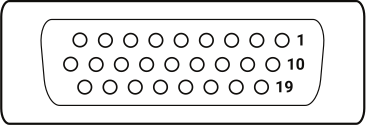
Fig. 3.5 External User I/O D-Sub 26-pin Connector and Pin Layout
3.8. Computer Connection
This section describes how to connect various communication interfaces to your MagnaDC power supply. Beyond installation, more detailed information about the communication interfaces and programming instructions is described in: Computer Programming. All available communication interfaces: USB, LXI TCP/IP Ethernet, and industrial interfaces operated on a shared bus; only one interface can be active at a time. If none of these interfaces are connected, the MagnaDC power supply defaults to RS485. The active communication interface is denoted in the front panel status menu display.
Warning
Magna-Power RJ45 ports are data-only. Connect Magna-Power RJ45 communication ports only to IEEE 802.3-compliant (active) switches or hubs. Do not connect any Magna-Power RJ45 communication port to passive PoE, PoE++, or any injector that supplies constant 48–57 V without negotiation, which will permanently damage the communication board.
3.8.1. USB Interface
Universal Serial Bus (USB) interfaces are available on the front (USB2) and the rear (USB1) of the SLx Series MagnaDC power supply. Both accept USB Type B connectors and only one is active at a time. A particular port becomes active when a cable is plugged into USB connector and the other end is connected to a powered host. USB2 will always take precedence over USB1.
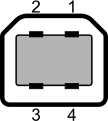
Fig. 3.6 USB Type B receptacle and pin layout
3.8.2. RS485 Interface
The SLx Series MagnaDC power supply supports RS485 communications through a RJ45 connector located on the rear communications panel, as shown in Fig. 3.7. The signals A (Data +), B (Data -), and GND are wired to pins 1, 2, and 7 of the RS485 RJ45 connector, respectively. The remaining pins are electrically disconnected. RS485 interface is always connected provided no other communication interface cables are connected.
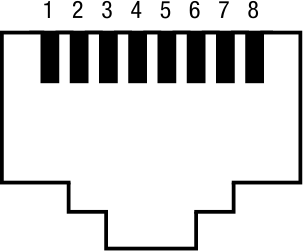
Fig. 3.7 RS485 RJ45 receptacle and pin layout
Note
Refer to the ANSI/TIA-568 telecommunications standard for the most common pin-to-pair assignments found on Ethernet cables: T568A and T568B.
3.8.3. Ethernet Interface
The SLx Series MagnaDC power supply supports a Ethernet option through a RJ45 connected located on the rear communication panel, as shown in Fig. 3.8. The LXI option activates after receiving its first SCPI command. At that point, the front display panel will show the interface change from either USB1, USB2, or RS485 to LXI. The only way to return to those interfaces is to power cycle the MagnaDC power supply. The LXI TCP/IP Ethernet interface, connector JS5, is detailed in Ethernet Interface.
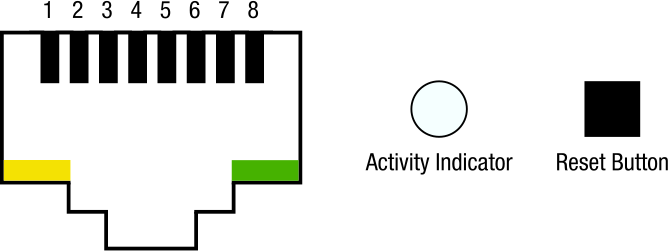
Fig. 3.8 LXI TCP/IP Ethernet RJ45 receptacle and pin layout
3.9. Electrical Check
Turn on the MagnaDC power supply using the black control power switch on the bottom left of the front panel. Immediately after turn-on, the MagnaDC power supply undergoes a self-test that check control and input circuitry. The Magna-Power emblem should be displayed during this self-test along with the the word MagnaDC power supply.
Note
After turning the unit on, it will take about 45 seconds for the MagnaDC power supply to initialize before it is ready for use.
When self-test is complete, the Menu display should show the unit’s Standby status, the voltage meter should show whatever the DC bus voltage is, and the current meter should show 0.000. The fans should be running at a low speed.
If the self test fails, the fans do not come on, or the unit fails to come into standby, power off the MagnaDC power supply off and back on with the black power switch. If you continue to have similar issues, contact Magna-Power support for further assistance.