

Installation und Konfiguration des MPE IVI-Treibers
Wichtige Ressourcen:
- IVI Getting Started Guide der IVI Foundation
- Magna-Power Electronics MagnaDC IVI-Programmierbeispielprojekte (C# und Visual Basic)
- Magna-Power Electronics MagnaLOAD IVI-Programmierbeispielprojekte (C# und C)
Voraussetzungen:
- Entwicklungsumgebung wie Visual Studio Express 2008
- IVI Foundation Shared Components
- VISA-COM Global Resource Manager (nur einen auswählen)
- National Instruments NI-VISA: Übernehmen Sie bei der Installation alle Standardeinstellungen, oder
- Agilent IO Libraries Suite: Als primäres VISA installieren und alle Standardeinstellungen übernehmen
- National Instruments NI-VISA: Übernehmen Sie bei der Installation alle Standardeinstellungen, oder
- Magna-Power Electronics (MPE) IVI-Treiber. Siehe Support-Downloads.
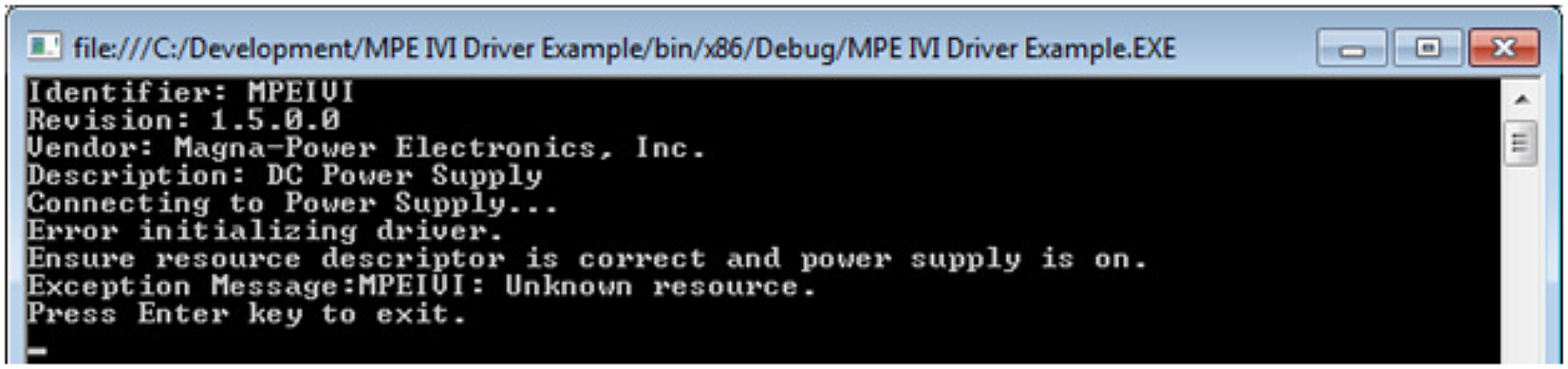
Hinweis: Die Installation des MPE-IVI-Treibers schlägt fehl, wenn die IVI Foundation Shared Components nicht zuerst installiert wurden. Der MPE-IVI-Treiber gibt eine Warnung aus (Abbildung 1), wenn kein VISA-COM Global Resource Manager installiert ist. VISA-COM kann vor oder nach dem MPE-IVI-Treiber installiert werden.
Using the IVI Driver
Reference the IVI Drivers
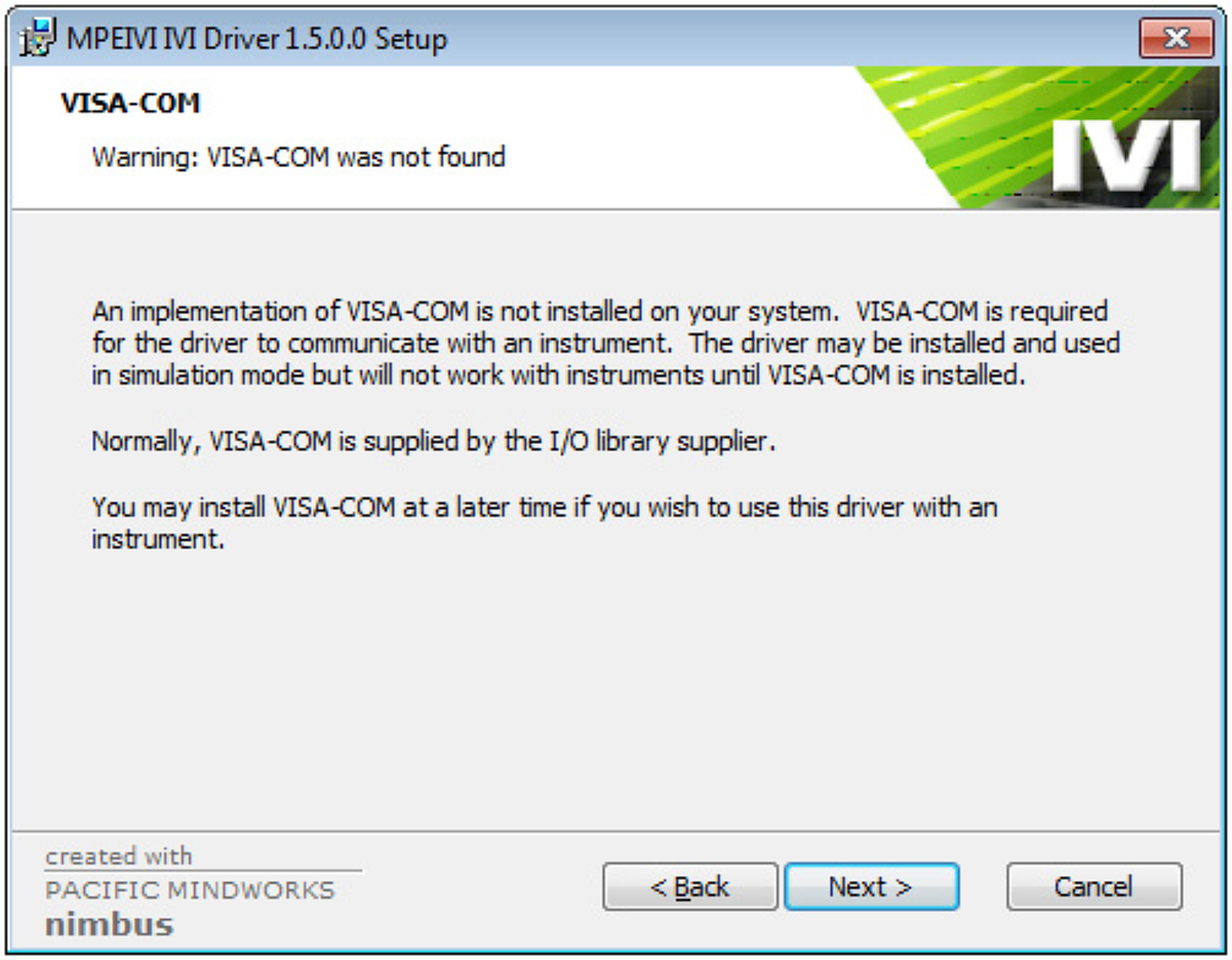
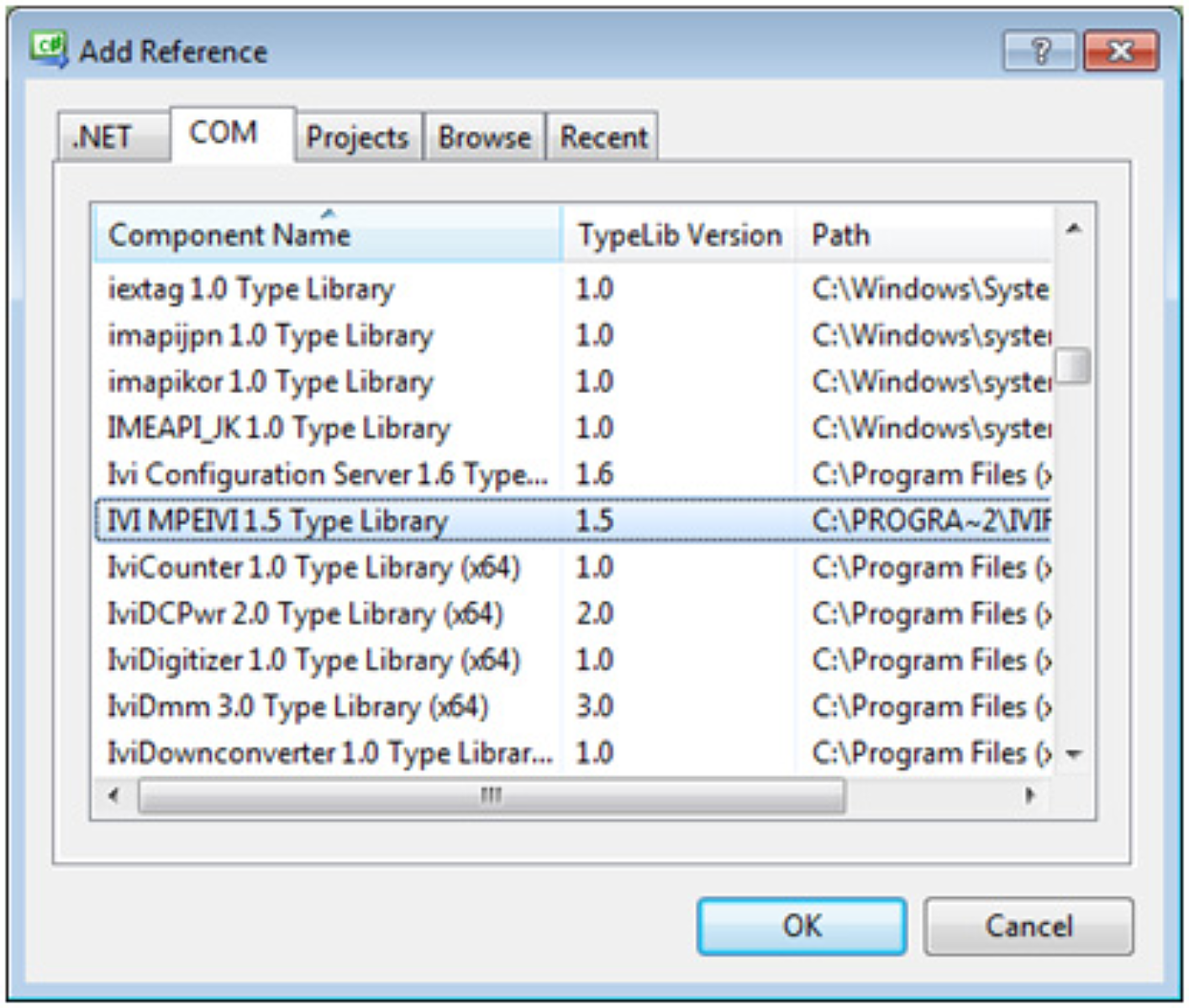
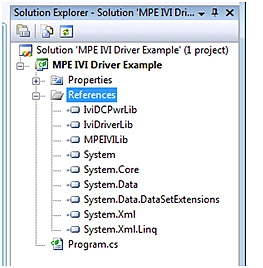
Before you can utilize the IVI Driver, you must add a reference to it. In Solution Explorer, right click on your Visual Studio project and click Add Reference… Select the COM tab (Figure 2) and then select the IVI MPEIVI 1.5 Type Library and click OK. Note: This will automatically add a reference to IviDCPwrLib and IviDriverLib (Figure 3).
Ensure the target platform is 32-bit (x86)
Since the IVI driver is a 32-bit COM driver, it can only be accessed from a 32-bit executable. By default, .NET programs will run in the native architecture of the operating system. However, a 64-bit program cannot access a 32-bit COM driver, so the target platform must be changed to force the program to run in 32-bit (x86) mode if your application will be used on a 64-bit version of Windows.
Special Instructions for Visual Studio Express Users
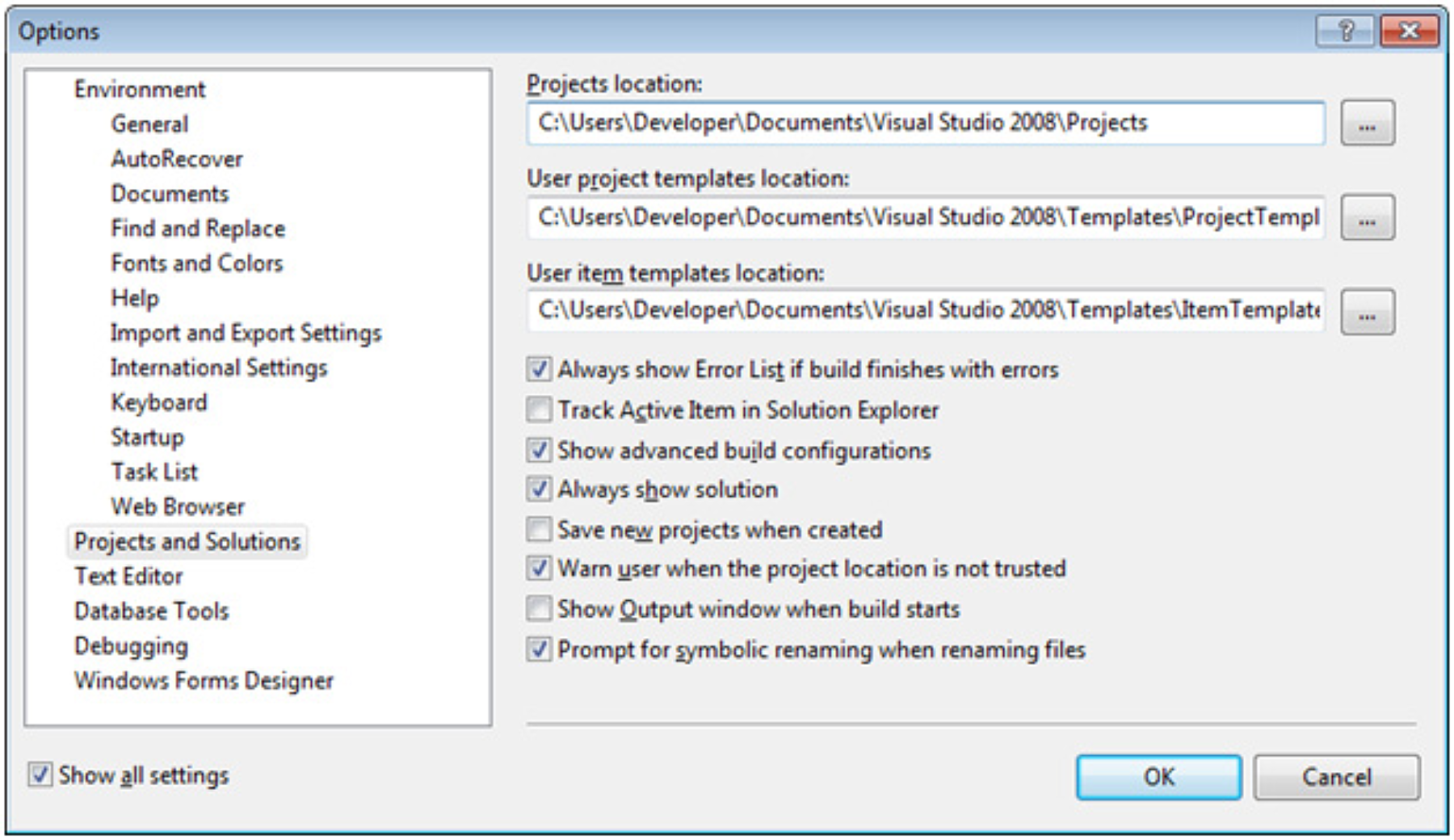
By default, Visual Studio Express hides the configuration options that allow you to select the target platform. To enable these configuration options (Figure 4):
- Check the box labeled Show advanced build configurations
- Select Projects and Solutions in the left panel
- Check the box labeled Show all settings in the bottom left
- Select Tools -> Options from the menu
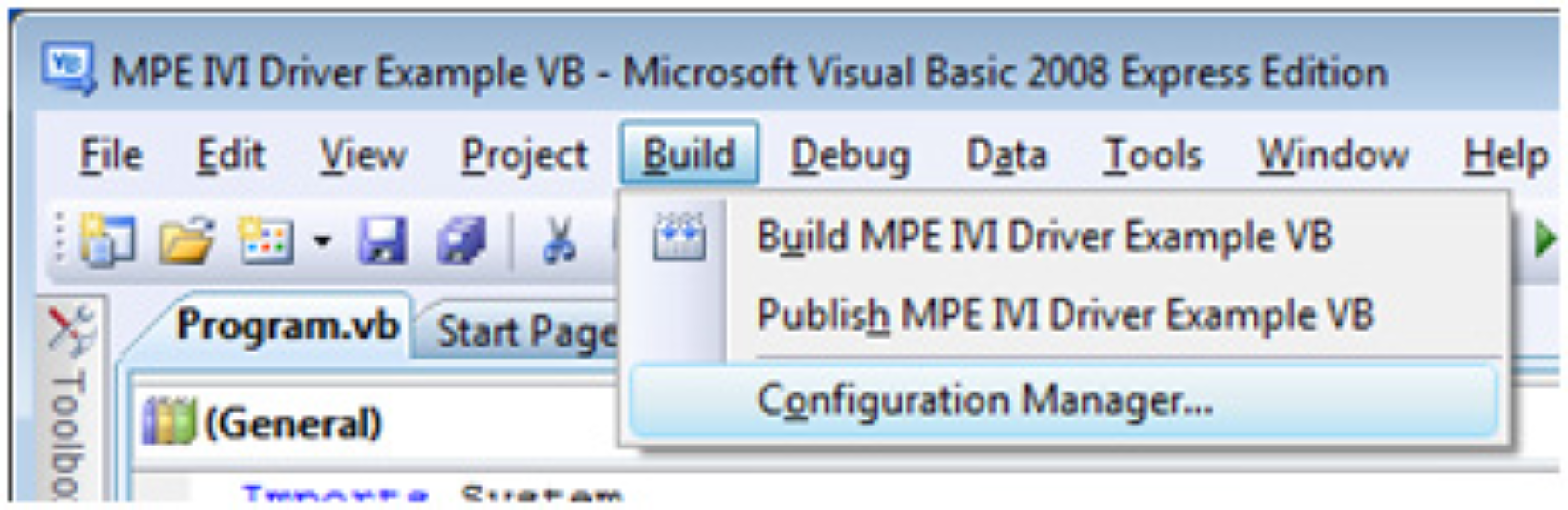
Der Konfigurations-Manager ist nun über das Menü „Erstellen" auswählbar (Abbildung 5).
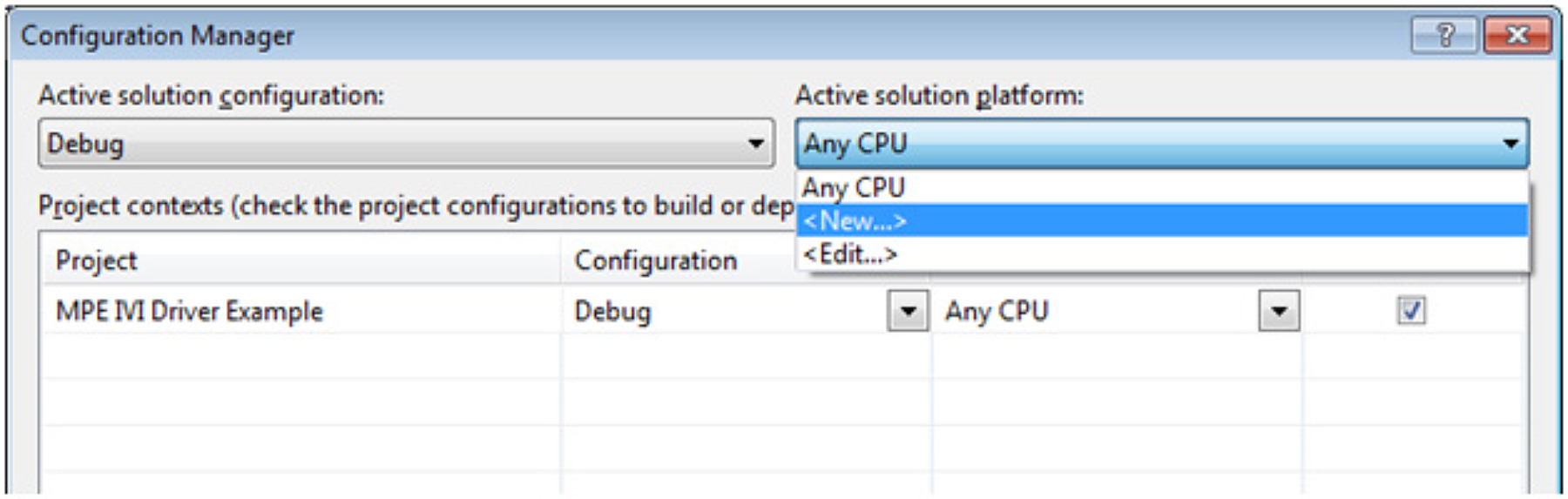
Wählen Sie im Konfigurations-Manager aus dem Dropdown-Menü „Aktive Projektmappenplattform" (Abbildung 6).
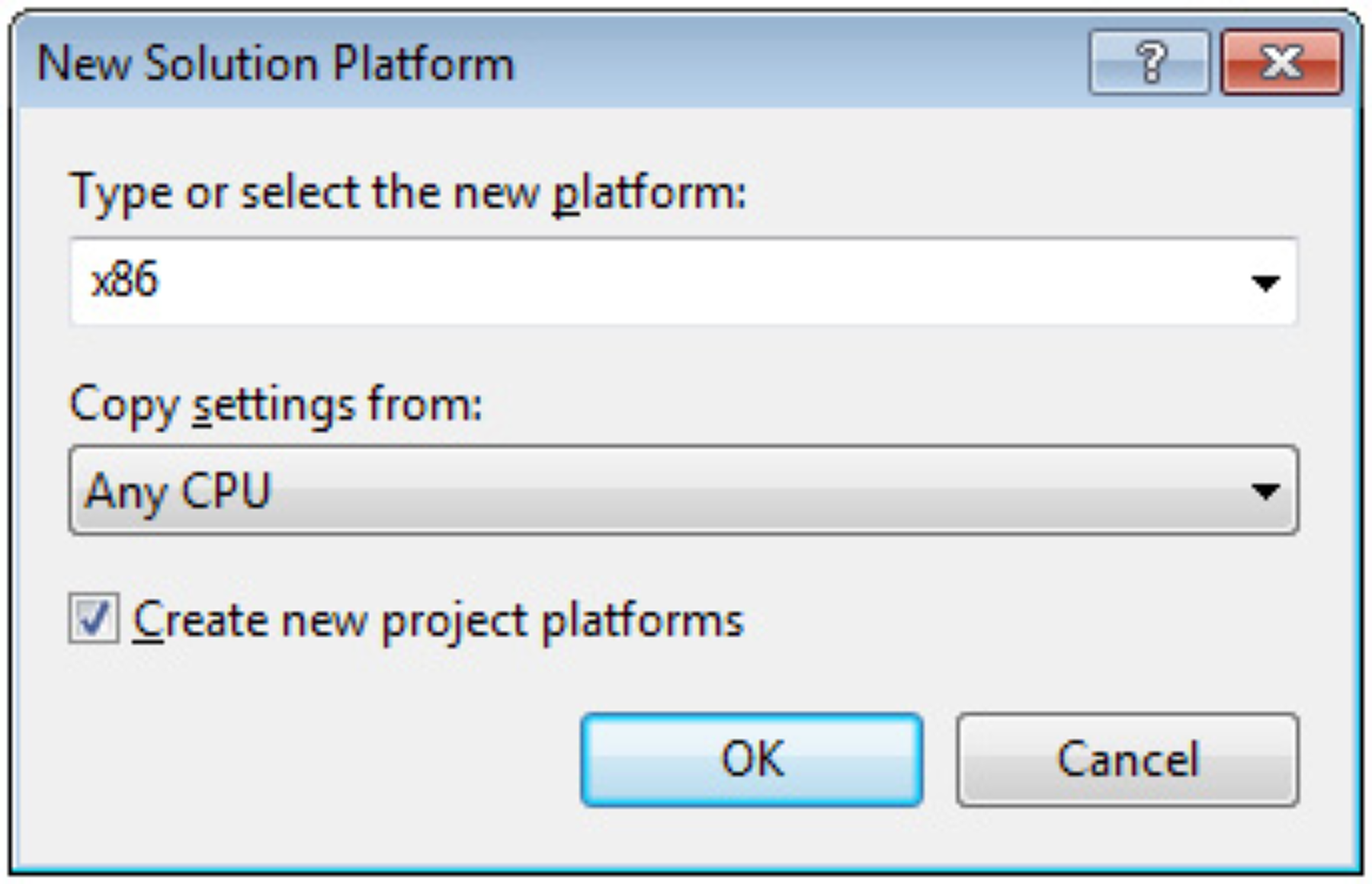
Wählen Sie x86 aus dem Plattform-Dropdown und klicken Sie auf OK (Abbildung 7).
Klicken Sie auf „Schließen". Ihre ausführbare Datei wird nun auch auf einer 64-Bit-Version von Windows als 32-Bit-Anwendung ausgeführt.
Common Errors
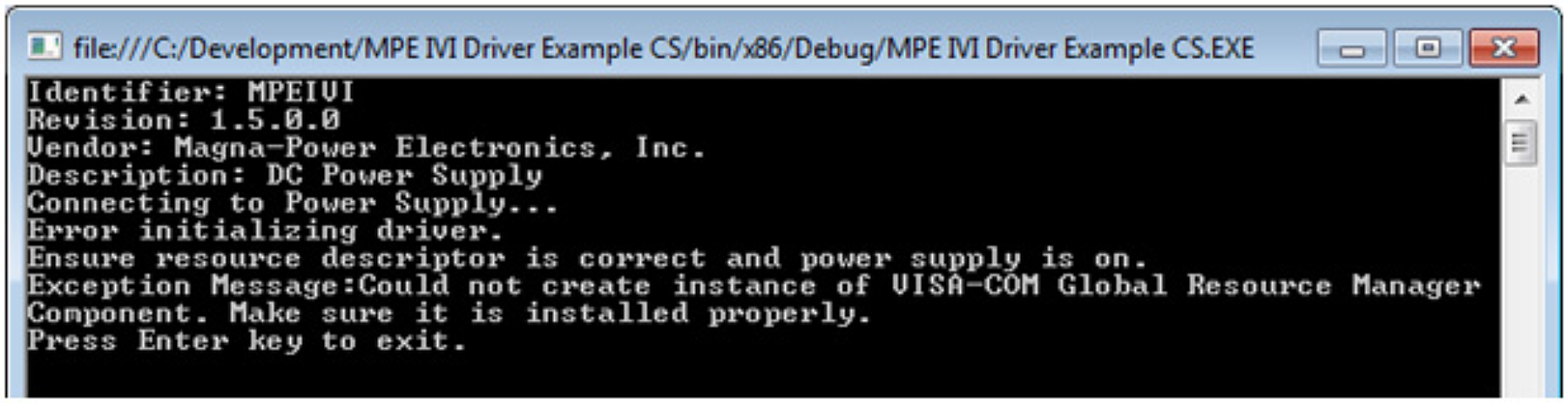
Problem: Exception "Could not create instance of VISA-COM Global Resource Manager Component. Make sure it is installed properly."
Solution: Install either National Instruments NI-VISA or Agilent IO Libraries Suite.
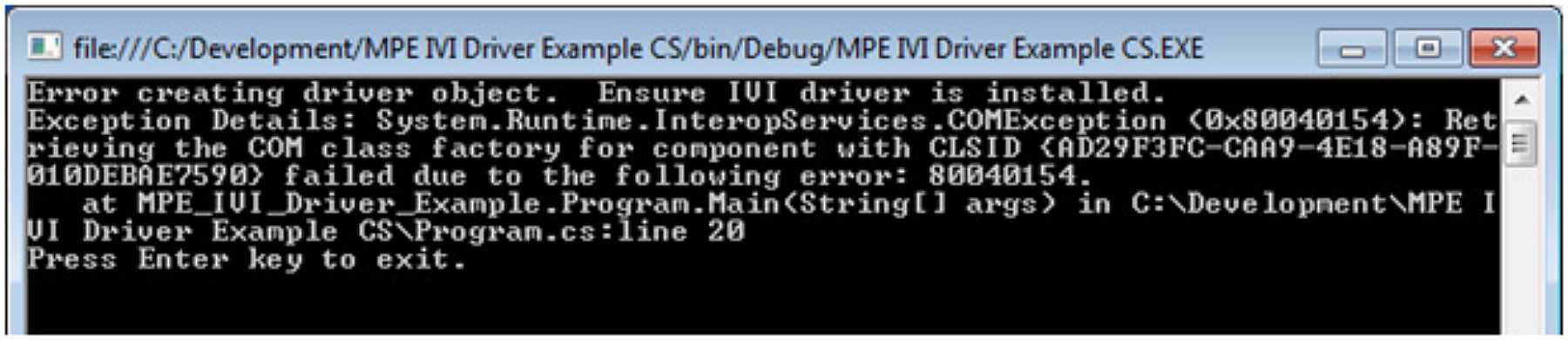
Problem: System.Runtime.InteropServices.COMException (0x80040154): Retrieving the COM class factory for component with CLSID {AD29F3FC-CAA9-4E18-A89F-010DEBAE7590} failed due to the following error: 80040154.
Solution: Make sure the MPE IVI driver is installed. If this error occurs on 64-bit Windows, make sure the application has been set to run as 32-bit (x86).
Problem: COMException (0x80047060) MPEIVI: Unknown resource.
Solution: Make sure the resource descriptor is correct and the power supply is on and accessible. Several example resource descriptors can be found in the IVI Driver Example source code.