

MPE IVI驱动程序安装与配置
重要资源:
- IVI Foundation的IVI入门指南
- Magna-Power Electronics MagnaDC IVI编程示例项目(C#和Visual Basic)
- Magna-Power Electronics MagnaLOAD IVI编程示例项目(C#和C)
前提条件:
- 开发环境,如Visual Studio Express 2008
- IVI Foundation共享组件
- VISA-COM全局资源管理器(仅选择其一)
- National Instruments NI-VISA:安装过程中接受所有默认设置,或
- Agilent IO Libraries Suite:作为主要VISA安装并接受所有默认设置
- National Instruments NI-VISA:安装过程中接受所有默认设置,或
- Magna-Power Electronics (MPE) IVI驱动程序。请参阅支持下载。
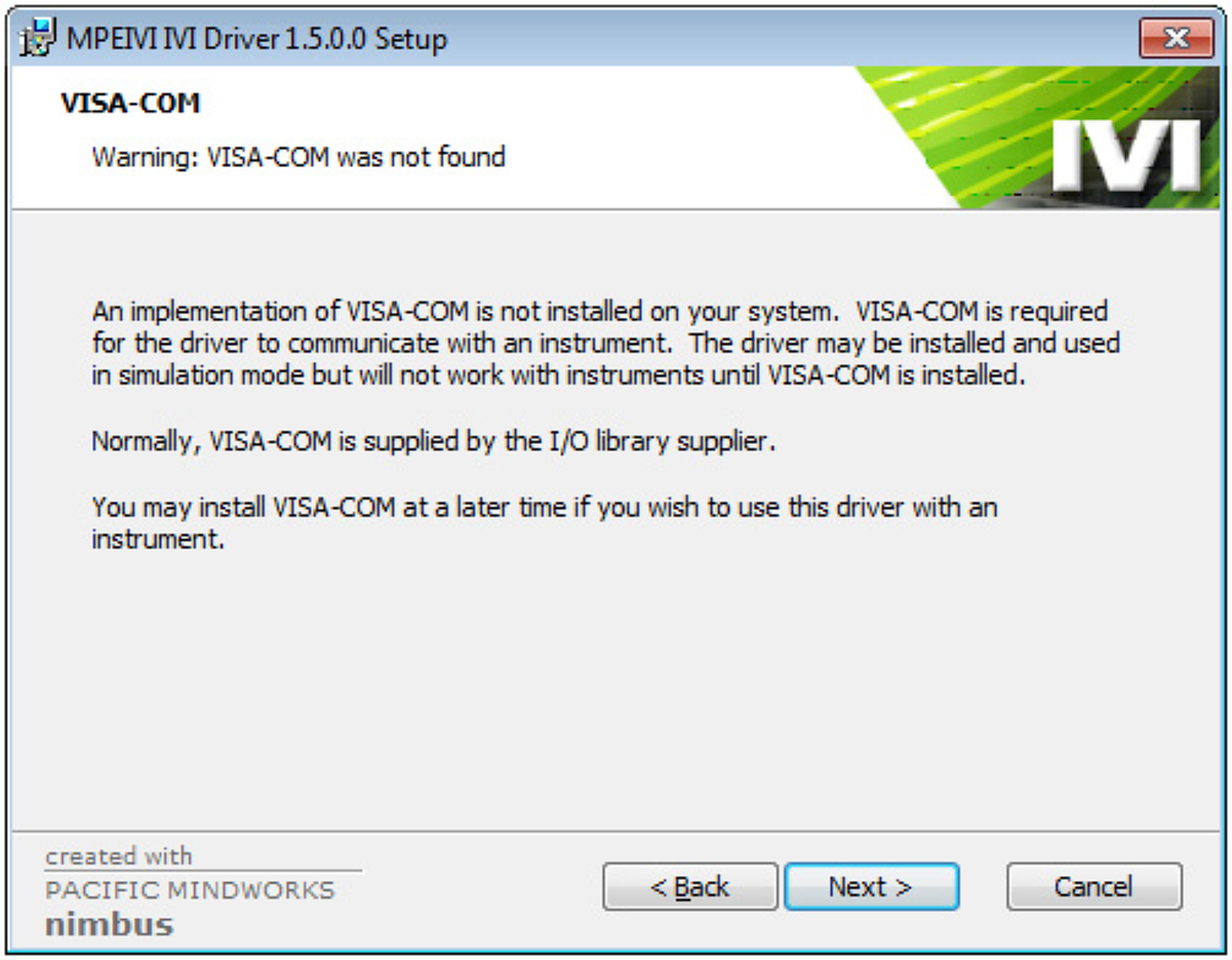
注意:如果未先安装IVI Foundation共享组件,MPE-IVI驱动程序将安装失败。如果未安装VISA-COM全局资源管理器,MPE-IVI驱动程序将显示警告(图1)。VISA-COM可以在MPE-IVI驱动程序之前或之后安装。
Using the IVI Driver
Reference the IVI Drivers
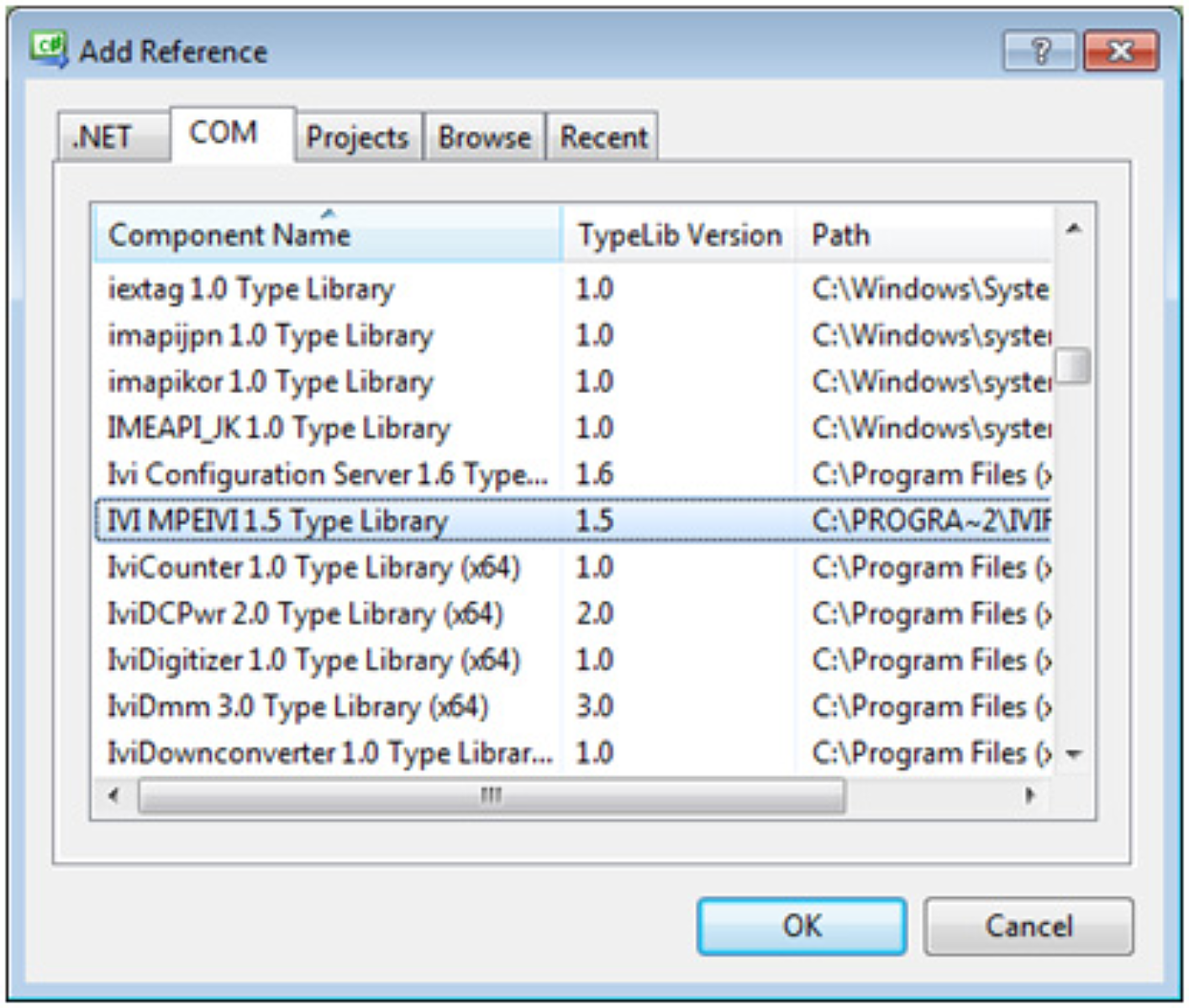
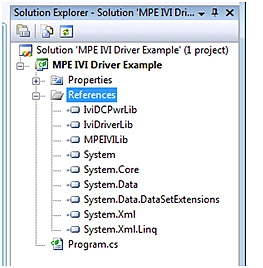
Before you can utilize the IVI Driver, you must add a reference to it. In Solution Explorer, right click on your Visual Studio project and click Add Reference… Select the COM tab (Figure 2) and then select the IVI MPEIVI 1.5 Type Library and click OK. Note: This will automatically add a reference to IviDCPwrLib and IviDriverLib (Figure 3).
Ensure the target platform is 32-bit (x86)
Since the IVI driver is a 32-bit COM driver, it can only be accessed from a 32-bit executable. By default, .NET programs will run in the native architecture of the operating system. However, a 64-bit program cannot access a 32-bit COM driver, so the target platform must be changed to force the program to run in 32-bit (x86) mode if your application will be used on a 64-bit version of Windows.
Special Instructions for Visual Studio Express Users
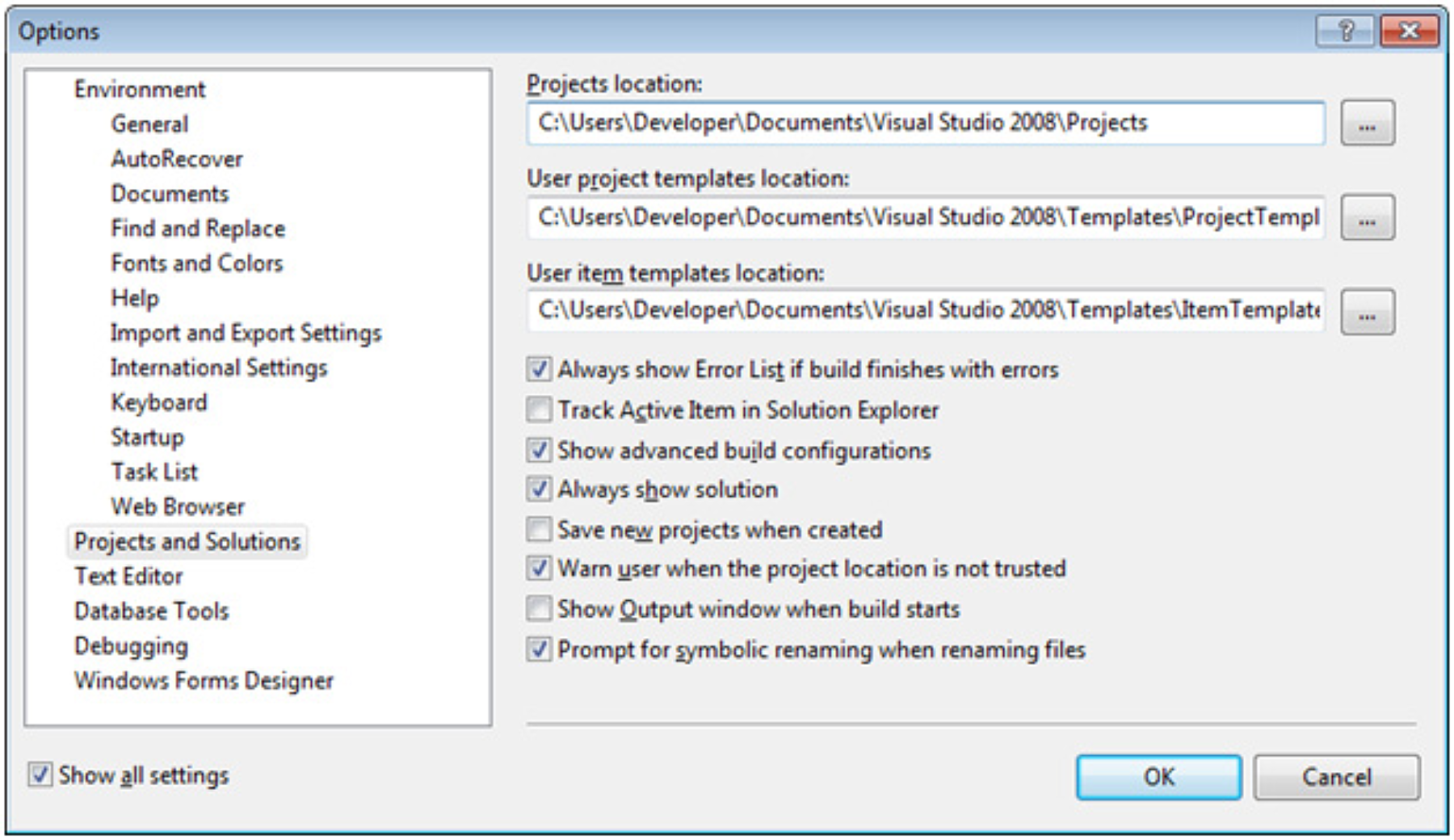
By default, Visual Studio Express hides the configuration options that allow you to select the target platform. To enable these configuration options (Figure 4):
- Check the box labeled Show advanced build configurations
- Select Projects and Solutions in the left panel
- Check the box labeled Show all settings in the bottom left
- Select Tools -> Options from the menu
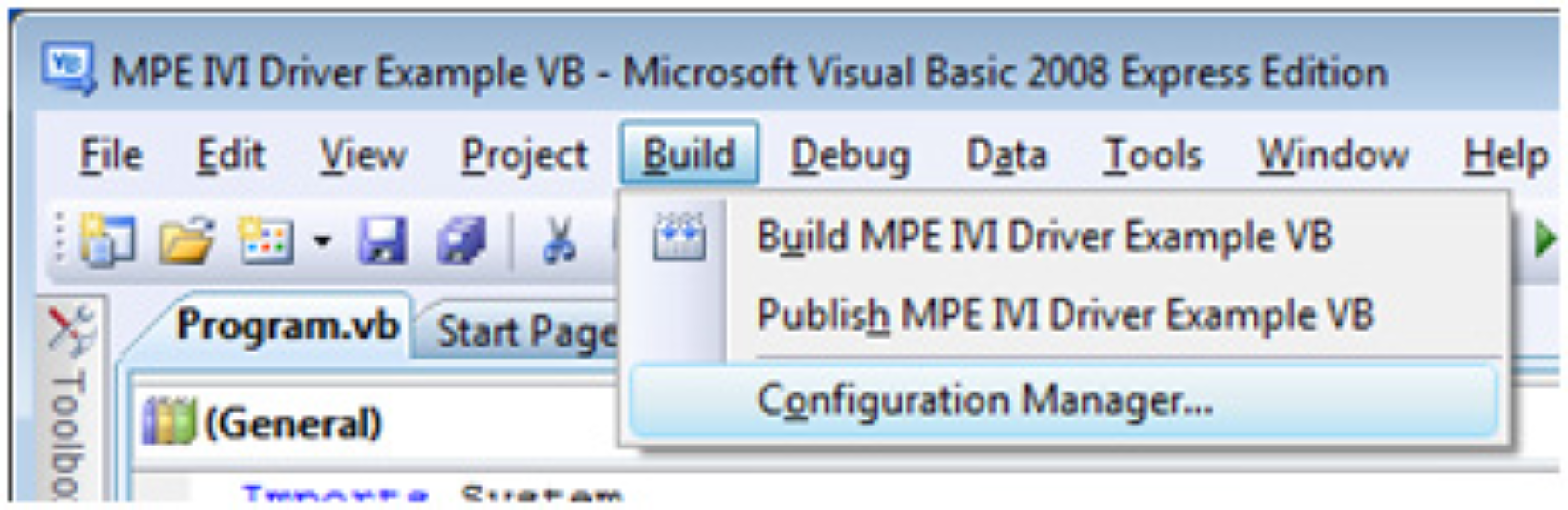
现在可以从"生成"菜单中选择"配置管理器"(图5)。
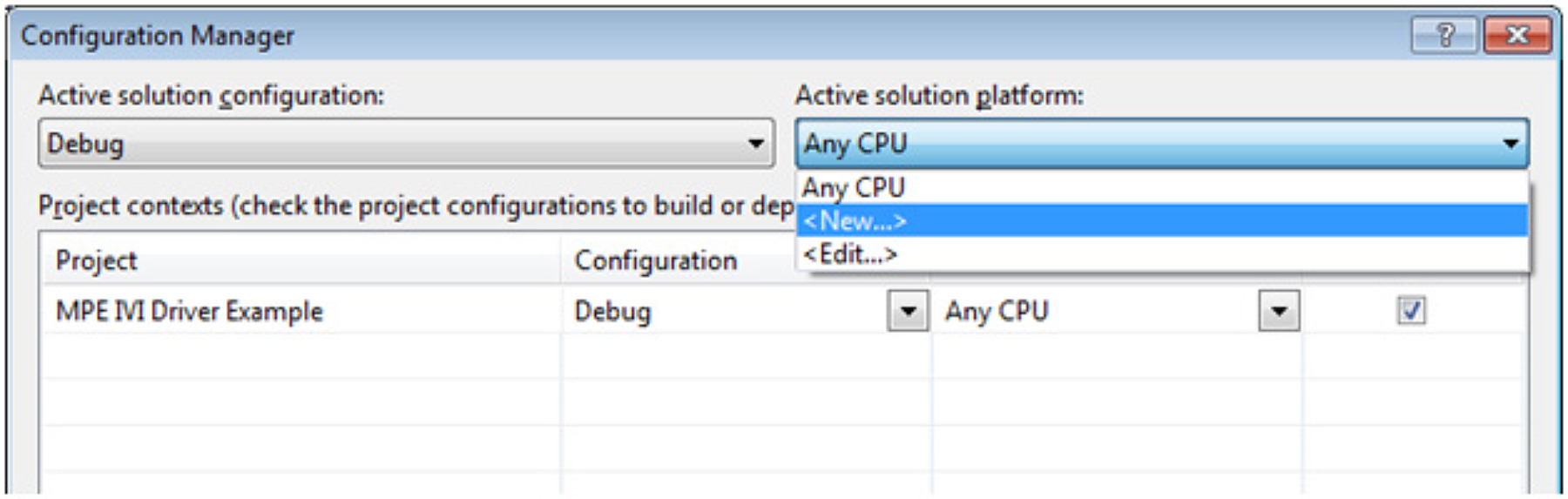
在配置管理器中,从"活动解决方案平台"下拉列表中进行选择(图6)。
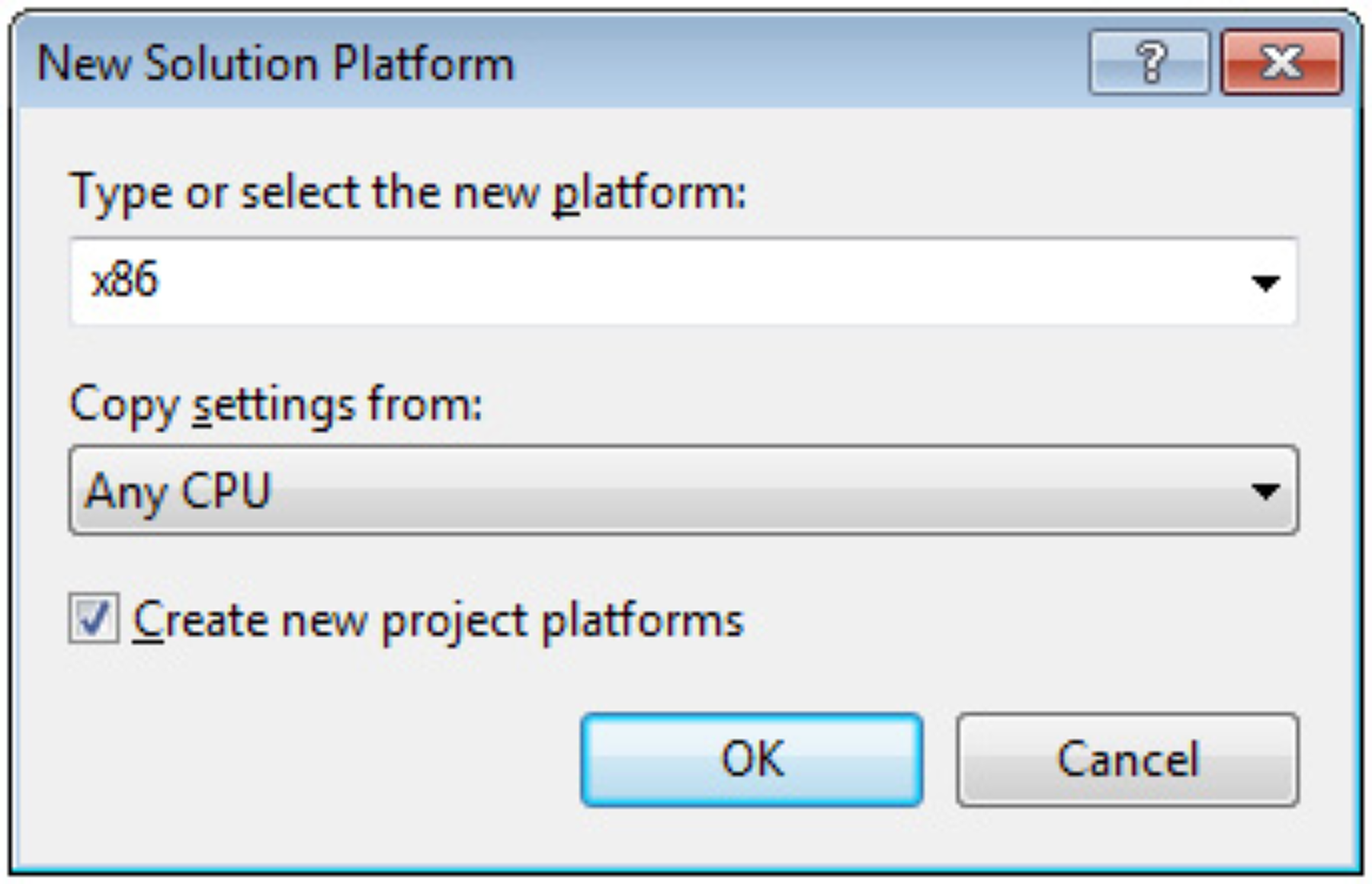
从平台下拉列表中选择x86,然后单击"确定"(图7)。
单击"关闭"。您的可执行文件现在将作为32位应用程序运行,即使在64位版本的Windows上也是如此。
Common Errors
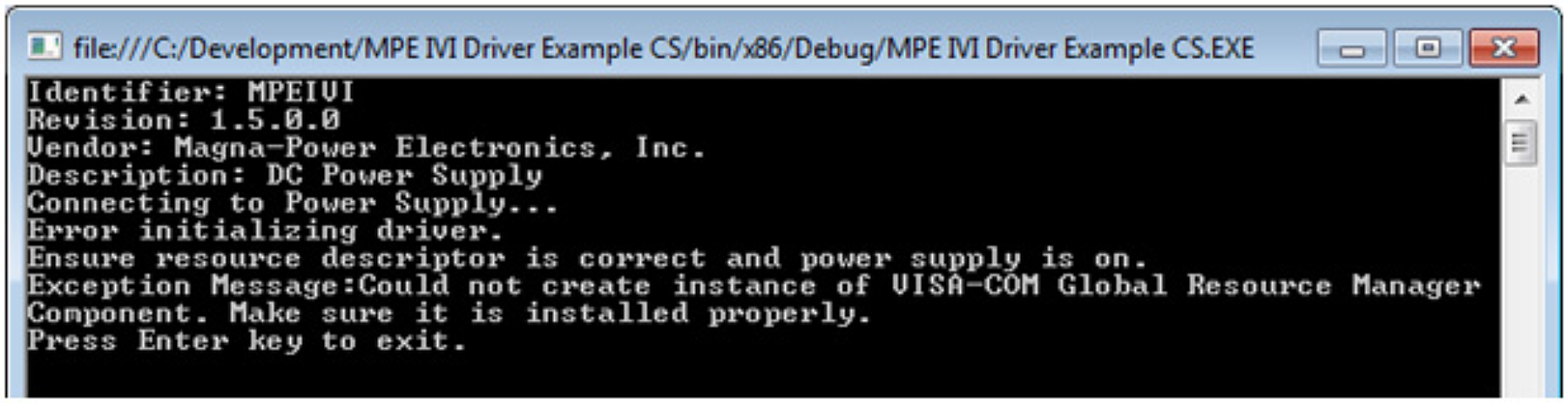
Problem: Exception "Could not create instance of VISA-COM Global Resource Manager Component. Make sure it is installed properly."
Solution: Install either National Instruments NI-VISA or Agilent IO Libraries Suite.
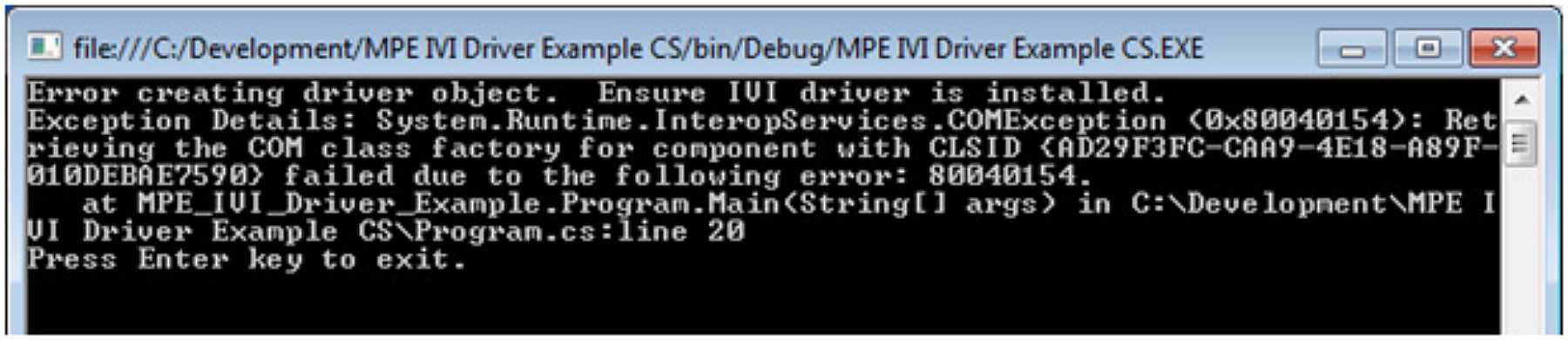
Problem: System.Runtime.InteropServices.COMException (0x80040154): Retrieving the COM class factory for component with CLSID {AD29F3FC-CAA9-4E18-A89F-010DEBAE7590} failed due to the following error: 80040154.
Solution: Make sure the MPE IVI driver is installed. If this error occurs on 64-bit Windows, make sure the application has been set to run as 32-bit (x86).
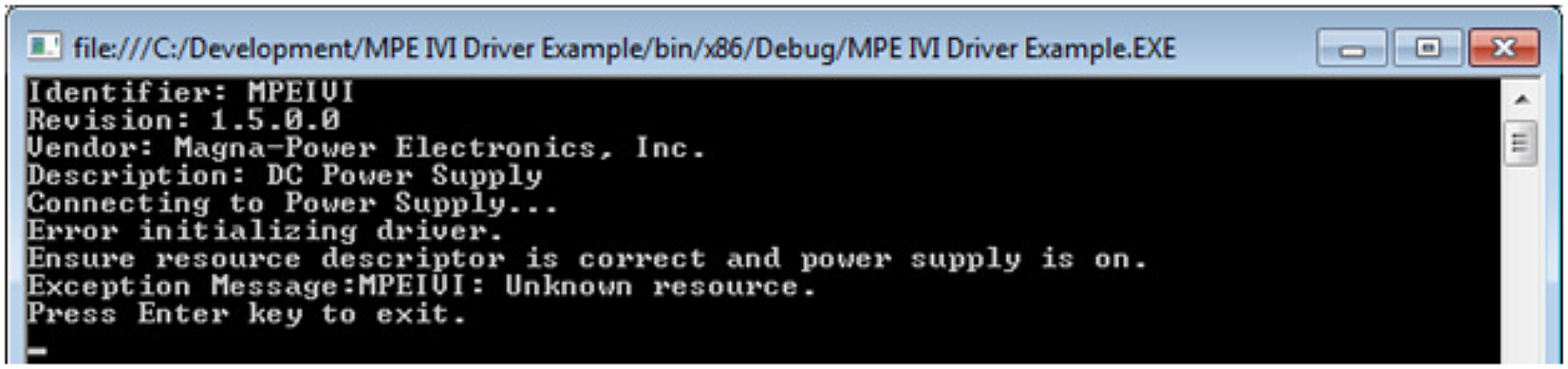
Problem: COMException (0x80047060) MPEIVI: Unknown resource.
Solution: Make sure the resource descriptor is correct and the power supply is on and accessible. Several example resource descriptors can be found in the IVI Driver Example source code.