

MPE IVI 드라이버 설치 및 구성
주요 참고 자료:
- IVI Foundation의 IVI 시작 가이드
- Magna-Power Electronics MagnaDC IVI 프로그래밍 예제 프로젝트 (C# 및 Visual Basic)
- Magna-Power Electronics MagnaLOAD IVI 프로그래밍 예제 프로젝트 (C# 및 C)
사전 요구 사항:
- Visual Studio Express 2008과 같은 개발 환경
- IVI Foundation 공유 컴포넌트
- VISA-COM Global Resource Manager (하나만 선택)
- National Instruments NI-VISA: 설치 시 모든 기본값을 수락하거나,
- Agilent IO Libraries Suite: 기본 VISA로 설치하고 모든 기본값을 수락
- National Instruments NI-VISA: 설치 시 모든 기본값을 수락하거나,
- Magna-Power Electronics (MPE) IVI 드라이버. 지원 다운로드를 참조하십시오.
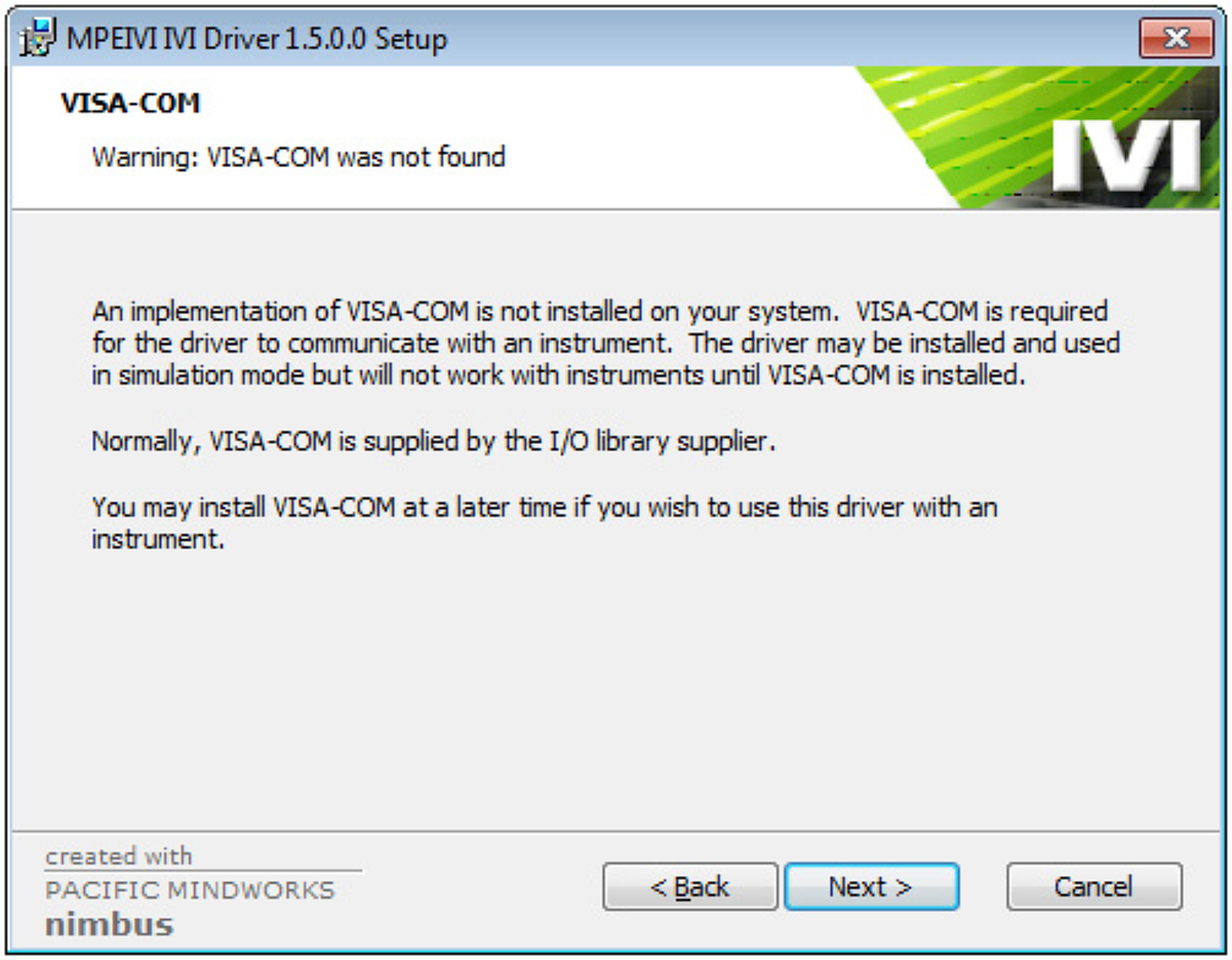
참고: IVI Foundation 공유 컴포넌트가 먼저 설치되어 있지 않으면 MPE-IVI 드라이버 설치가 실패합니다. VISA-COM Global Resource Manager가 설치되어 있지 않은 경우, MPE-IVI 드라이버는 그림 1과 같은 경고를 표시합니다. VISA-COM은 MPE-IVI 드라이버 설치 전후에 설치할 수 있습니다.
Using the IVI Driver
Reference the IVI Drivers
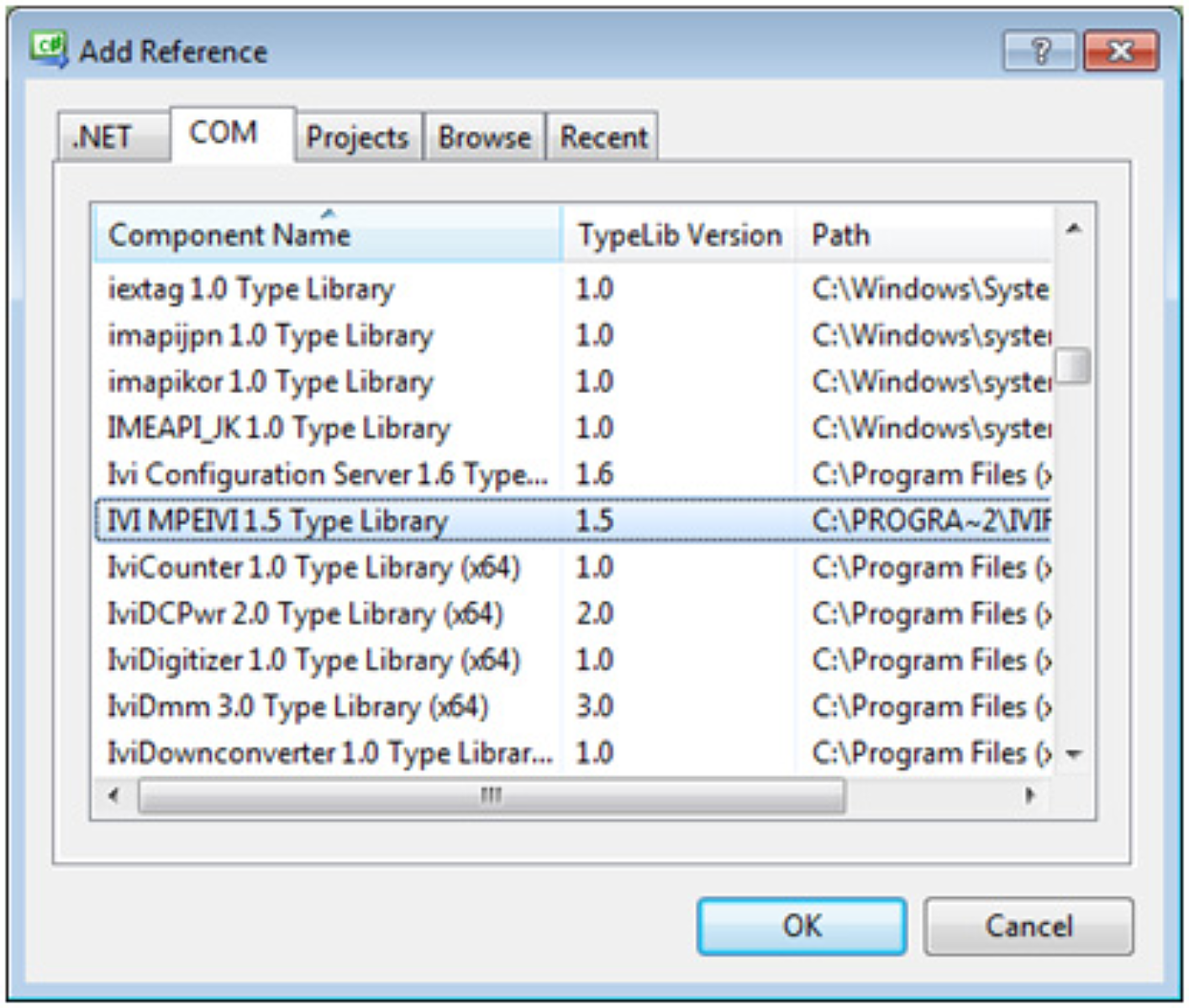
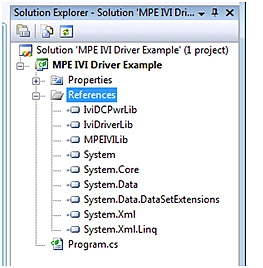
Before you can utilize the IVI Driver, you must add a reference to it. In Solution Explorer, right click on your Visual Studio project and click Add Reference… Select the COM tab (Figure 2) and then select the IVI MPEIVI 1.5 Type Library and click OK. Note: This will automatically add a reference to IviDCPwrLib and IviDriverLib (Figure 3).
Ensure the target platform is 32-bit (x86)
Since the IVI driver is a 32-bit COM driver, it can only be accessed from a 32-bit executable. By default, .NET programs will run in the native architecture of the operating system. However, a 64-bit program cannot access a 32-bit COM driver, so the target platform must be changed to force the program to run in 32-bit (x86) mode if your application will be used on a 64-bit version of Windows.
Special Instructions for Visual Studio Express Users
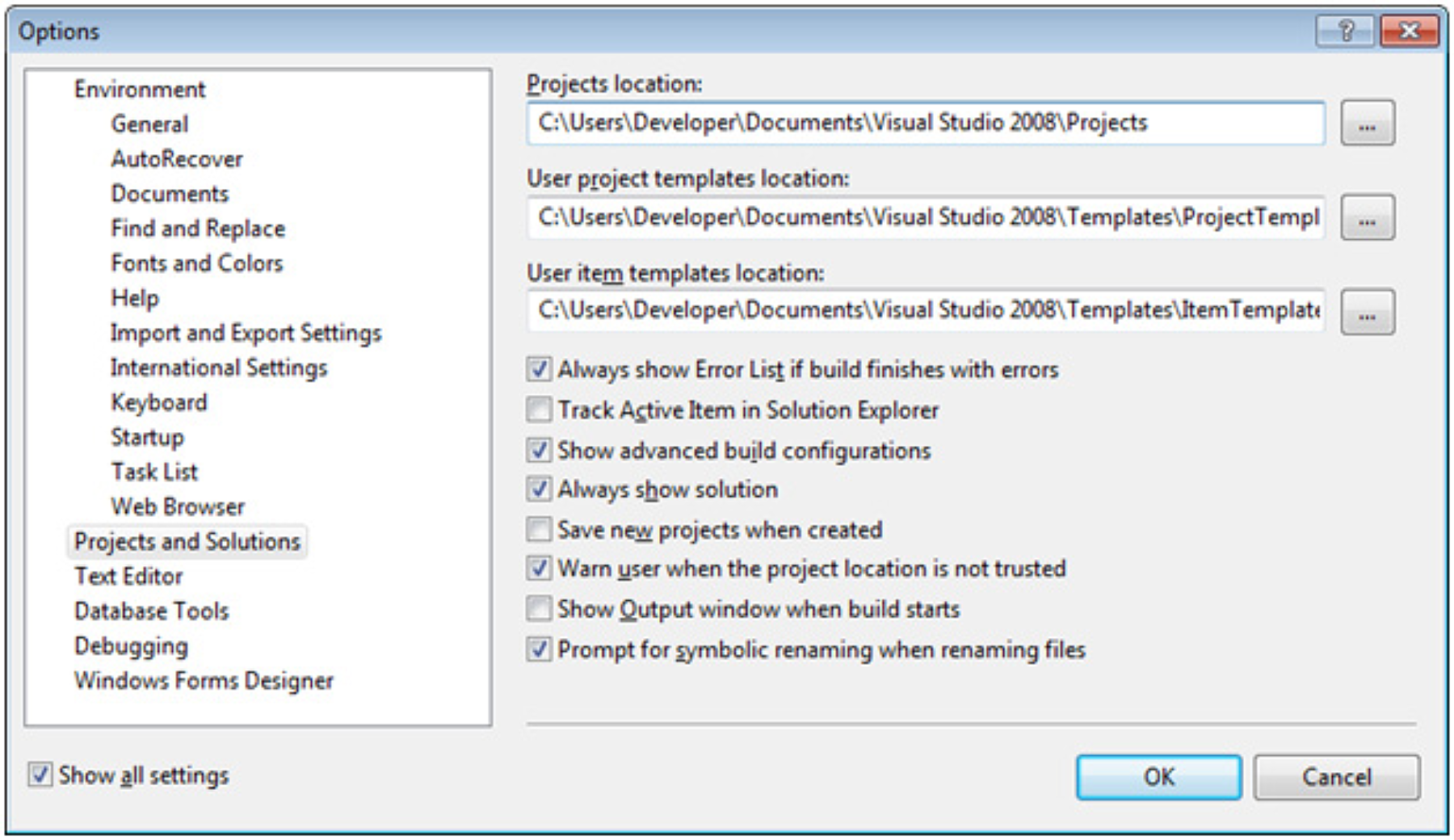
By default, Visual Studio Express hides the configuration options that allow you to select the target platform. To enable these configuration options (Figure 4):
- Check the box labeled Show advanced build configurations
- Select Projects and Solutions in the left panel
- Check the box labeled Show all settings in the bottom left
- Select Tools -> Options from the menu
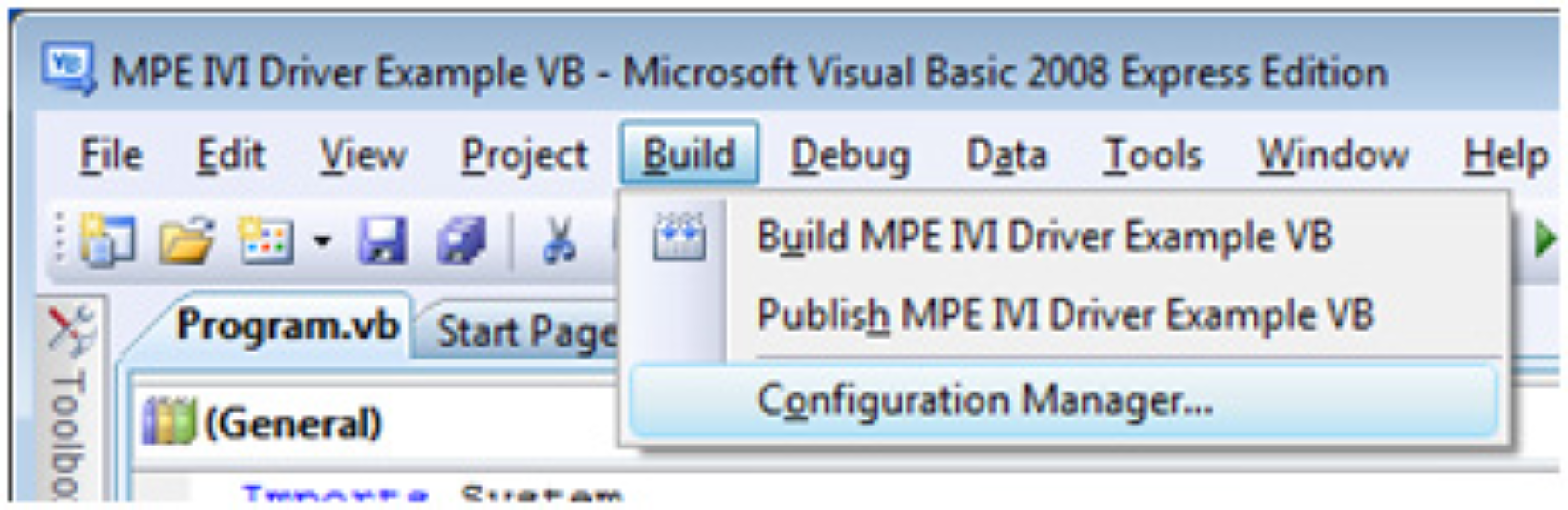
이제 빌드 메뉴에서 Configuration Manager를 선택할 수 있습니다 (그림 5).
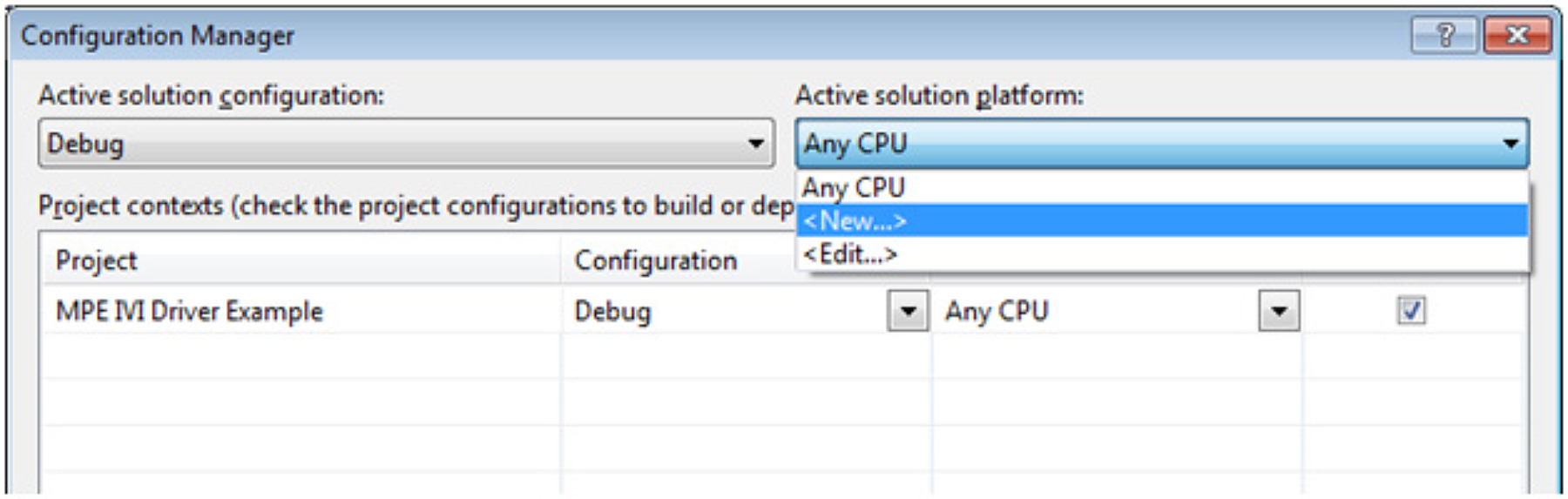
Configuration Manager에서 Active solution platform 드롭다운을 선택합니다 (그림 6).
플랫폼 드롭다운에서 x86을 선택하고 OK를 클릭합니다 (그림 7).
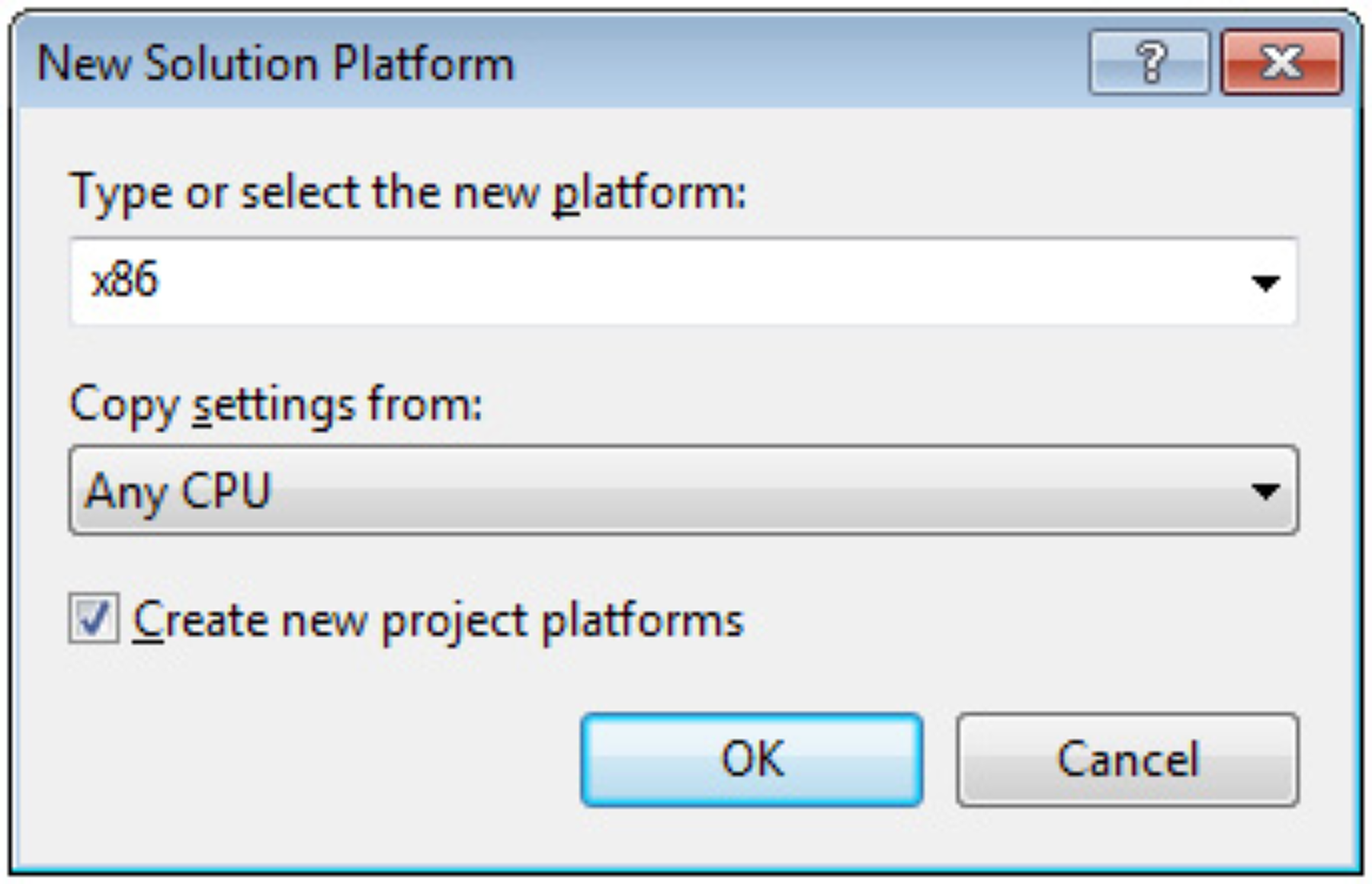
닫기를 클릭합니다. 이제 64비트 버전의 Windows에서도 실행 파일이 32비트 애플리케이션으로 실행됩니다.
Common Errors
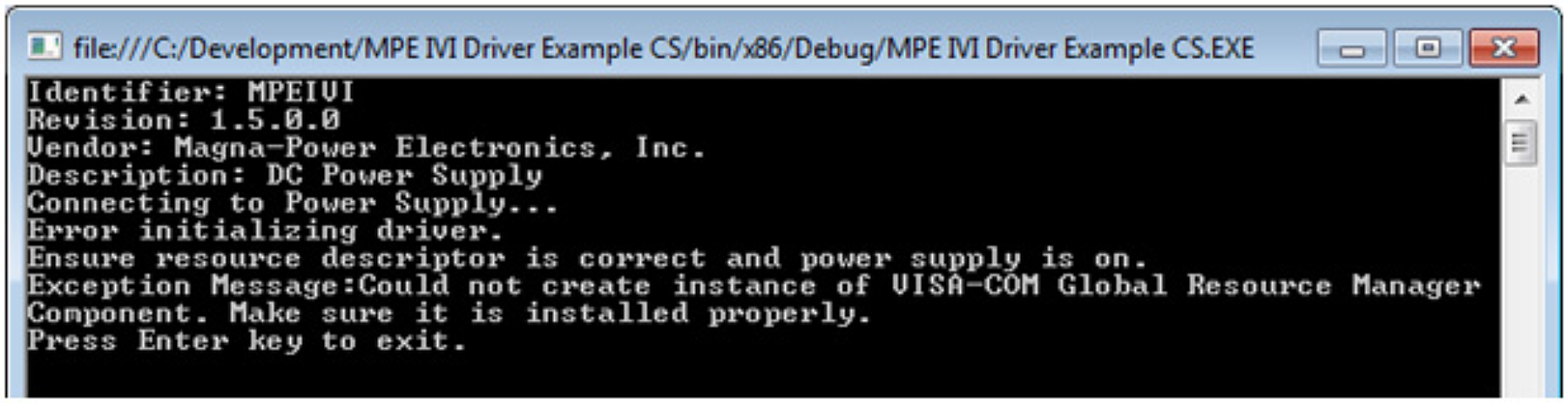
Problem: Exception "Could not create instance of VISA-COM Global Resource Manager Component. Make sure it is installed properly."
Solution: Install either National Instruments NI-VISA or Agilent IO Libraries Suite.
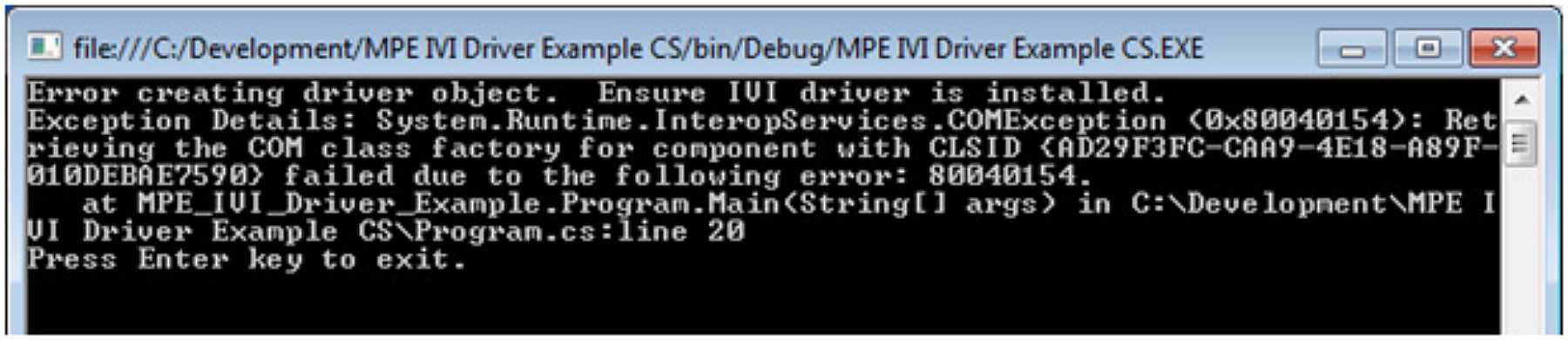
Problem: System.Runtime.InteropServices.COMException (0x80040154): Retrieving the COM class factory for component with CLSID {AD29F3FC-CAA9-4E18-A89F-010DEBAE7590} failed due to the following error: 80040154.
Solution: Make sure the MPE IVI driver is installed. If this error occurs on 64-bit Windows, make sure the application has been set to run as 32-bit (x86).
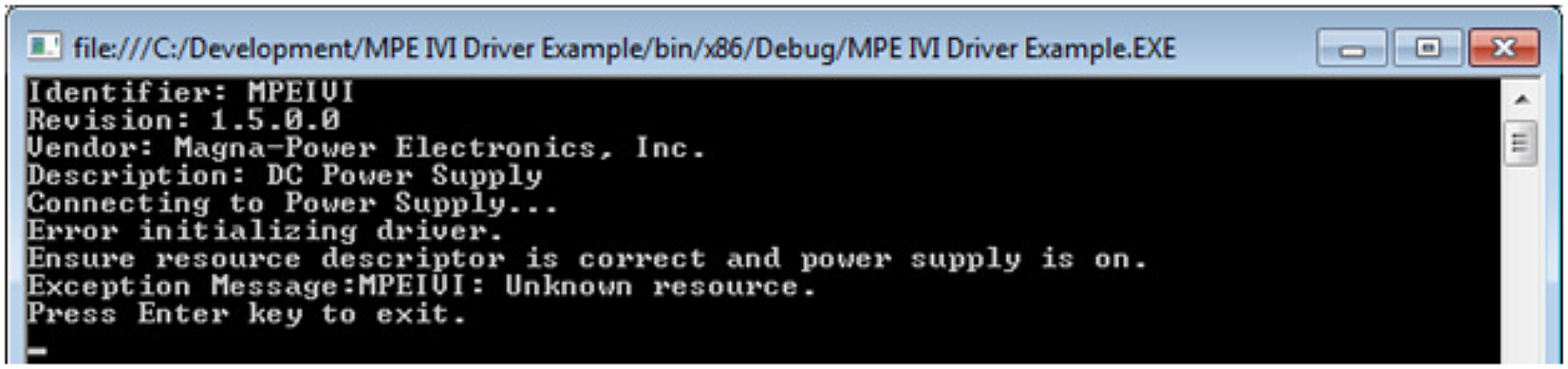
Problem: COMException (0x80047060) MPEIVI: Unknown resource.
Solution: Make sure the resource descriptor is correct and the power supply is on and accessible. Several example resource descriptors can be found in the IVI Driver Example source code.